How to Summarize Long Recordings with Local AI on Mac
Summarize hours-long recordings locally on your Mac using AI. Get key points, action items, and structured notes without uploading audio to the cloud.

A three-hour board meeting. A two-hour customer interview. A 90-minute lecture recording. Long audio files contain valuable information, but manually reviewing hours of content to find key points is impractical. Cloud-based AI summarization services work, but they require uploading potentially sensitive recordings to third-party servers. Local AI on your Mac offers a better solution: transcribe and summarize long recordings entirely on-device, extracting actionable insights without any cloud exposure.
Note: Summarizing long recordings (over 10 minutes) requires MinuteAI Pro subscription ($7.99/month, $69.99/year, or $99.99 one-time). Free tier handles recordings under 10 minutes each.
The Challenge of Long Recordings
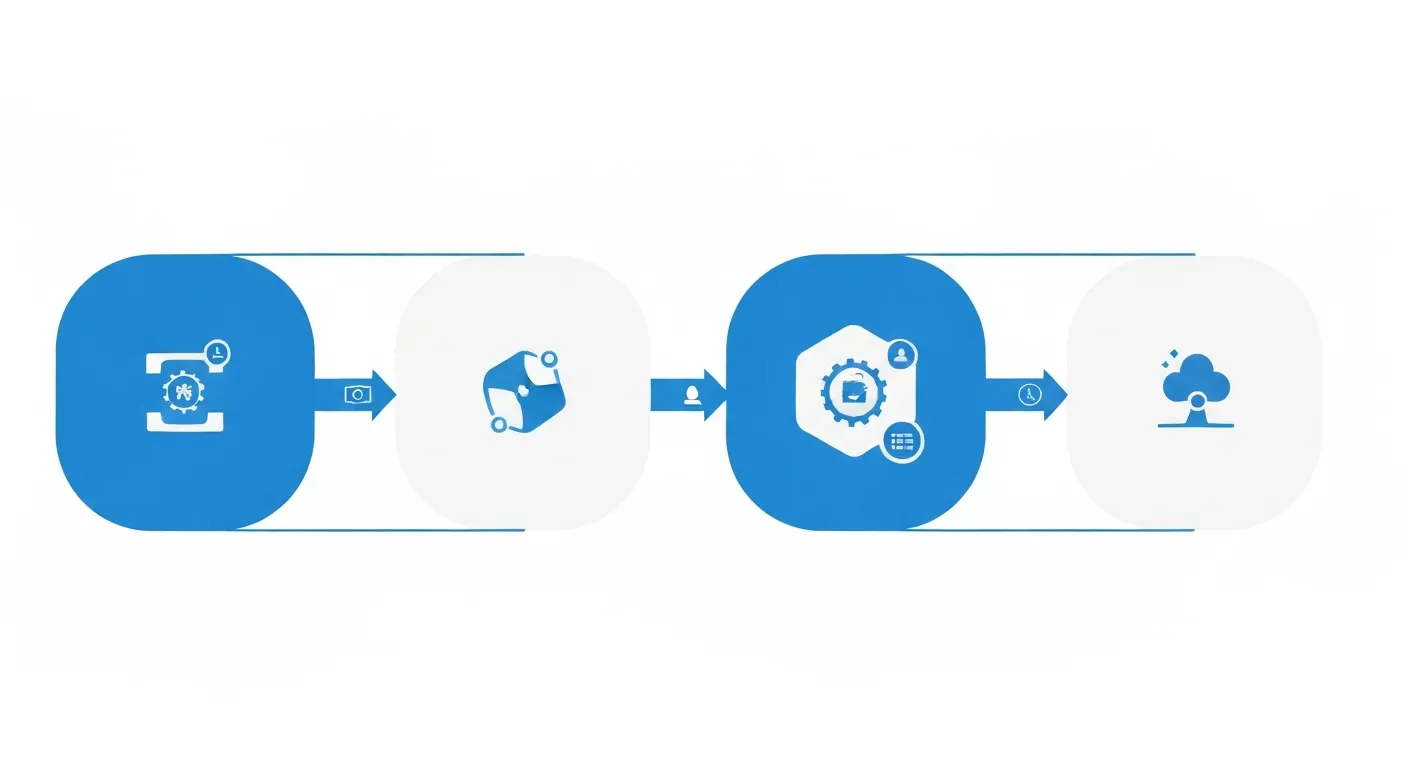
Long-form audio creates specific problems that short recordings don’t:
Time-Consuming Manual Review: Listening to a three-hour recording in real-time takes three hours. Even skimming at 2x speed requires 90 minutes. For professionals who record multiple meetings, interviews, or lectures weekly, manual review consumes unsustainable amounts of time. The information you need might be scattered across the entire recording, making it impossible to skip sections without missing important content.
Difficulty Finding Specific Information: Weeks after a recording, you remember someone mentioned a specific commitment or decision, but finding that moment in hours of audio is like searching for a sentence in a book without page numbers. Scrubbing through the timeline hoping to stumble on the right section is inefficient and unreliable. Without text-based searching, audio remains opaque.
No Quick Overview for Decision-Making: Sometimes you need just the gist—what were the main topics discussed? What decisions were made? Who committed to what actions? Getting these high-level takeaways from a long recording requires either listening to the entire thing or hoping your memory captured the important parts. For busy professionals making decisions based on meeting outcomes, this lack of quick summary access creates bottlenecks.
Cloud Upload Limitations: Cloud summarization services often impose file size limits (typically 200MB-500MB), which restricts audio length or forces quality reduction. Uploading multi-gigabyte high-quality recordings takes significant time and bandwidth. For users with slow internet or data caps, cloud processing becomes impractical for long files.
Privacy Concerns Scale with Content: A 5-minute recording might contain one sensitive topic. A 3-hour board meeting contains confidential strategic discussions, financial information, personnel decisions, and competitive intelligence. The more content your recording contains, the greater the risk if it’s uploaded to third-party servers. Long recordings almost always contain something that shouldn’t be shared externally.
Local AI summarization solves all these problems: process unlimited-length audio on your device, search transcripts instantly, generate summaries without cloud exposure, and extract structured information in minutes rather than hours.
How Local AI Summarization Works
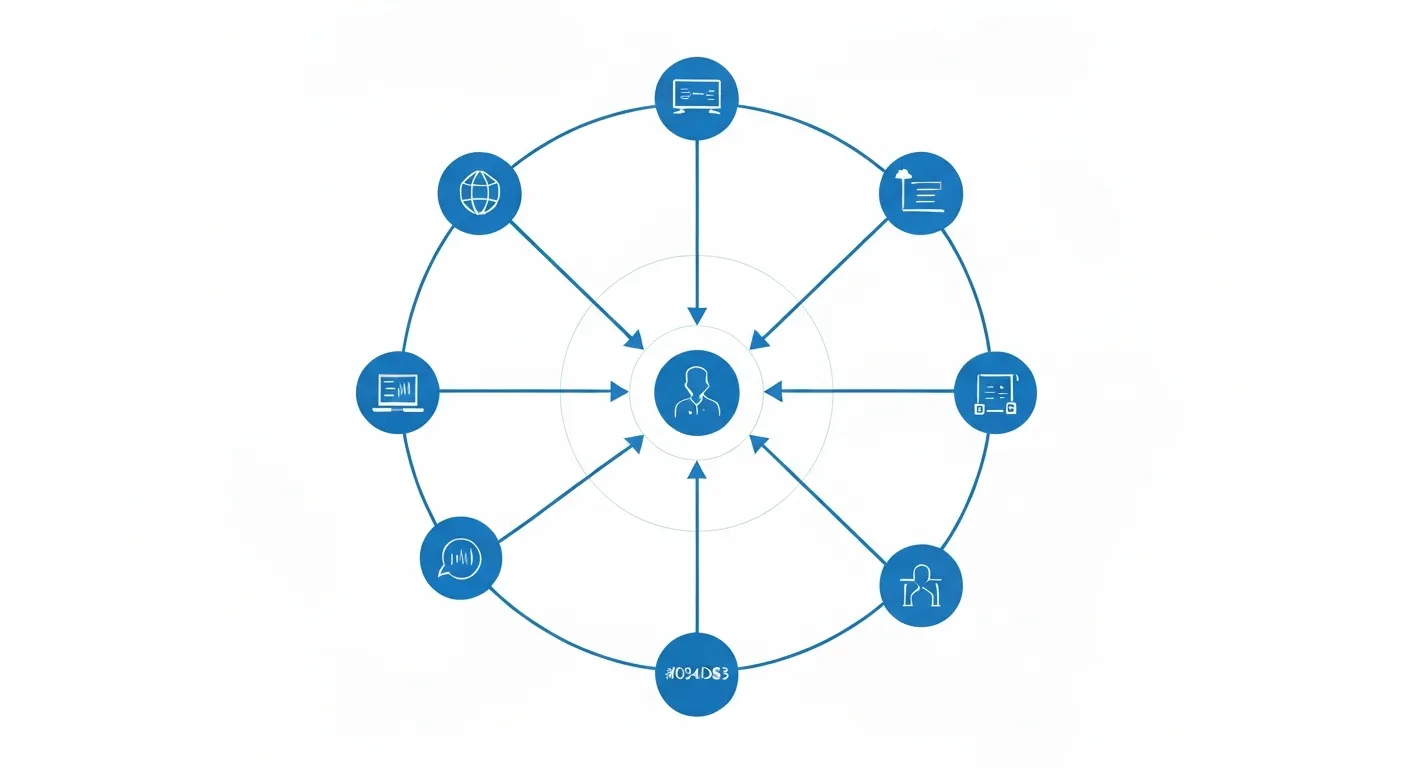
Understanding the technical workflow helps you optimize the process:
Step 1: Transcription: Local AI models (WhisperKit, FluidAudio, or Apple Speech Analyzer running on your Mac) convert speech to text entirely on-device. The model analyzes audio waveforms, identifies speech patterns, and generates text transcripts with timestamp alignment. This happens locally using your Mac’s CPU, GPU, or Apple’s Neural Engine—no data transmission required.
For a one-hour recording, transcription typically takes 10-30 minutes depending on your Mac’s processor and the model size you choose. This might seem slow compared to real-time cloud services, but it’s actually processing faster than real-time (a 3-hour recording transcribes in under 90 minutes), and it happens without uploading gigabytes of audio. Processing speed varies by hardware and model size.
Step 2: Text Chunking: AI language models have context length limits—they can only process a certain amount of text at once. For very long transcripts (20,000+ words from multi-hour recordings), the text gets divided into overlapping chunks. Each chunk includes context from previous sections to maintain continuity, ensuring summaries don’t lose thread across boundaries.
Modern local AI models like those used in MinuteAI can handle longer contexts than earlier generations, reducing the need for chunking and producing more coherent summaries of extended content.
Step 3: AI Enhancement: Once you have a transcript, local AI models generate summaries, extract key points, identify action items, or answer specific questions about the content. This happens on-device using models optimized for Apple Silicon (via MLX framework) or Apple’s integrated Intelligence features in macOS.
You provide prompts like “Summarize the main topics discussed” or “List all action items and who is responsible for each,” and the AI processes the entire transcript locally to generate structured output. Because processing is local, you can iterate—refining prompts or asking follow-up questions without re-uploading audio or consuming cloud API credits.
Note: Free tier includes 10 AI enhancements per month. MinuteAI Pro offers unlimited AI enhancement with advanced summaries and action items.
Step 4: Structured Output: The AI’s response gets formatted into actionable notes—bulleted summaries, numbered lists, or prose paragraphs depending on your prompt. You export these results alongside the full transcript for reference, creating a searchable archive of both detailed content and executive summaries.
This four-step process transforms inaccessible long-form audio into searchable, summarized, actionable information—all without your data leaving your Mac. Learn more about the technical foundations in our guide to running AI locally on Mac.
Step-by-Step: Summarizing a Long Recording
Here’s the complete workflow using MinuteAI for local summarization:
1. Import Your Recording to MinuteAI
From Files: Drag and drop your audio file directly into MinuteAI, or use File → Import to navigate to the file location. MinuteAI supports common formats: M4A, MP3, WAV, AIFF, CAF, and more. The app loads audio locally without copying it to external servers.
From URLs: If your recording is hosted online (like a Zoom cloud recording, podcast episode, or YouTube video), paste the URL and MinuteAI downloads it directly to your Mac for local processing. This is useful for processing public content offline or downloading your own cloud recordings for local analysis before deleting them from cloud storage.
From Direct Recording: Record directly in MinuteAI if you’re capturing a meeting, lecture, or interview in real-time. The recording saves locally as it captures, ready for immediate transcription when finished.
File Size Considerations: Local processing handles unlimited file sizes—your only constraint is available disk space. A 3-hour high-quality recording might be 500MB-1GB, which is no problem for modern Macs with hundreds of gigabytes of storage. No cloud upload limits, no compression required.
2. Transcribe Using WhisperKit or MLX Whisper
Choose Your Engine: Select WhisperKit for the best balance of accuracy and compatibility, or MLX Whisper for faster processing on Apple Silicon Macs (M1, M2, M3, M4 processors). Both options process 100% locally with no internet required.
Avoid cloud engines like Groq for sensitive content—they offer speed but require uploading audio to external servers, defeating the privacy purpose of local processing.
Select Model Size: Larger models (Large, Medium) provide better accuracy, especially for technical terminology, accents, or poor audio quality. Smaller models (Small, Base) process faster but may have more transcription errors. For long recordings where accuracy matters, choose Large or Medium models even if processing takes longer—the time investment pays off in summary quality.
Start Transcription: Click Transcribe and let the AI process your audio. Processing time varies:
- 1-hour recording: 10-30 minutes (depending on model and hardware)
- 2-hour recording: 20-60 minutes
- 3-hour recording: 30-90 minutes
During transcription, you can continue using your Mac normally—MinuteAI processes in the background without monopolizing system resources. Check Activity Monitor to see CPU/GPU usage if you’re curious about processing distribution across cores.
Monitor Progress: MinuteAI shows real-time progress as transcription proceeds. For very long files, the progress bar provides estimated completion time, letting you step away and return when processing finishes.
3. Review the Transcript for Accuracy
Once transcription completes, review the text for errors before using it for summarization:
Common Transcription Issues:
- Technical terms, acronyms, or jargon might be misheard: “MLX” becomes “MLEx”, “API” becomes “eighty pie”
- Names get phonetically transcribed: “Nguyen” becomes “win”, “Siobhan” becomes “shuh-von”
- Homophones confuse the AI: “their” vs “there”, “principal” vs “principle”
- Poor audio quality or overlapping speech creates gaps or incorrect text
Quick Edit Workflow: Use MinuteAI’s editing interface to correct errors while listening to the corresponding audio. The transcript syncs with audio timestamps, so clicking a section in the text jumps to that moment in the recording. Fix critical errors (especially names, numbers, or key terms), but don’t obsess over perfect accuracy—AI summarization is surprisingly robust to minor transcription errors.
Speaker Identification: If your recording includes multiple speakers, enable speaker diarization (if available in your transcription settings) to label different voices. This helps the AI attribute statements correctly when generating summaries: “Speaker 1 committed to…, Speaker 2 raised concerns about…”
For best results, spend 5-10 minutes correcting obvious errors in critical sections rather than hours perfecting every word. AI summarization focuses on semantic meaning, not precise wording, so 95% accuracy is sufficient for high-quality summaries.
4. Use AI Enhancement to Generate Summaries
Now the powerful part: ask local AI to analyze the transcript and extract insights.
Access AI Enhancement: In MinuteAI, select the AI Enhancement feature (10 enhancements/month in free tier; unlimited with Pro). Choose your AI engine—MLX for on-device processing, or Apple Intelligence for system-level integration. Both run locally without cloud access.
Effective Prompts for Long Recordings:
General Summary: “Summarize this meeting in 3-5 bullet points covering the main topics discussed.”
Executive Summary: “Create an executive summary highlighting key decisions made, action items assigned, and important information revealed in this recording.”
Topic Extraction: “List all distinct topics discussed in this conversation, with a one-sentence summary of each.”
Action Items: “Extract all action items, decisions, and commitments mentioned. Format as: [Action item] - [Person responsible] - [Deadline if mentioned].”
Questions and Concerns: “Identify all questions raised during this meeting that weren’t fully answered, and all concerns or objections mentioned by participants.”
Key Quotes: “Extract the 5-10 most important or quotable statements from this recording, with context about who said them and when.”
Iterative Refinement: If the first summary doesn’t capture what you need, refine your prompt and try again. Since processing is local, you’re not consuming cloud credits or waiting for remote APIs—iterate freely until you get the output format you want.
Custom Analysis: Tailor prompts to your specific use case:
- Researchers: “Identify all research findings, methodologies mentioned, and gaps in current knowledge discussed.”
- Sales teams: “Extract all customer pain points, objections, and positive signals about our product.”
- Legal professionals: “Highlight all factual claims made that would require verification or documentation.”
- Journalists: “List all quotable statements and attributable claims that could be used in a news story.”
The AI processes your entire transcript (even if it’s 20,000+ words from a 3-hour recording) and generates structured output in seconds to minutes, depending on transcript length and model speed.
5. Export and Integrate Results
Save AI-Generated Summaries: Export the AI-enhanced summary as a separate text file or PDF. This gives you a standalone summary document you can share with colleagues (if appropriate) or file for future reference without needing the full transcript.
Preserve Full Transcripts: Keep the complete transcript alongside summaries for future reference. The summary tells you what’s important; the transcript lets you find exact wording, verify context, or answer questions that arise later. Store both in organized folders: “2026-02-15-Board-Meeting-Transcript.txt” and “2026-02-15-Board-Meeting-Summary.txt”
Integration with Other Tools: Copy summary text into project management systems (like Asana, Notion, or Linear) to create tasks from action items. Paste executive summaries into meeting notes shared with teams. Use key points as the basis for follow-up communications or reports.
Searchable Archive: Build a library of transcripts and summaries for long-term reference. With text-based content, you can search across months or years of recordings to find when specific topics were discussed: “grep -r ‘budget concerns’ ~/meeting-transcripts/” searches all archived transcripts for references to budget issues.
AI Enhancement Options: Choosing the Right Model
MinuteAI offers multiple AI engines for enhancement, each with different trade-offs:
MLX Models (Local, Private, Flexible)
MLX is a machine learning framework optimized for Apple Silicon, enabling powerful language models to run entirely on your Mac:
Advantages:
- 100% local processing—no internet required, no data transmission
- One-time model download, unlimited use afterward
- Full privacy for confidential content
- Customizable prompts for any use case
- Fast processing on M1/M2/M3/M4 Macs with unified memory
Best For: Users handling sensitive recordings who need privacy, offline capability, and custom analysis. Ideal for legal, medical, journalistic, or business confidential content.
How to Use: Select MLX as your AI engine in MinuteAI settings, download your preferred model size (larger models provide better summaries but require more memory), then submit custom prompts for any analysis task.
Apple Intelligence (System-Integrated, Convenient)
Apple’s built-in AI features integrate with macOS for seamless access:
Advantages:
- System-level integration with other macOS features
- Optimized for Apple’s Neural Engine hardware
- No separate model downloads required
- Privacy-focused design (most processing on-device)
Best For: Users who want convenient AI enhancement without managing separate models, and who prioritize Apple ecosystem integration.
How to Use: Select Apple Intelligence in MinuteAI, then use predefined analysis types (summary, key points, etc.) that leverage macOS’s AI capabilities.
Groq (Cloud-Based, Fast but Not Private)
Groq offers cloud API access for fastest processing:
Advantages:
- Extremely fast summarization (seconds rather than minutes)
- Access to cutting-edge models without local hardware requirements
- Useful for non-sensitive content prioritizing speed
Disadvantages:
- Requires uploading transcript text to Groq’s servers
- Privacy implications for confidential content
- Requires internet connection
- May involve per-use costs depending on usage volume
Best For: Public content, non-sensitive material, or situations where speed matters more than privacy.
When to Avoid: Any confidential, proprietary, or personally sensitive content that shouldn’t be transmitted to third parties.
For most users processing long recordings with sensitive content, MLX models provide the best balance: powerful summarization capability, complete privacy through local processing, and unlimited use without recurring costs.
Tips for Processing Long Audio Efficiently
Optimize your workflow for multi-hour recordings:
Choose the Right Model for the Job: For long recordings (2+ hours), use larger Whisper models (Medium or Large) despite slower processing time. The accuracy improvement matters more when you’re summarizing hours of content—errors compound in long transcripts, degrading summary quality. Invest the extra 20-30 minutes in transcription to get better summaries.
Handle Speaker Changes Clearly: Enable speaker diarization if your recording involves multiple speakers (meetings, interviews, panel discussions). This helps AI summaries attribute statements correctly: “The CFO raised concerns about…” vs “A participant raised concerns…” The former is actionable, the latter requires additional research to identify who said what.
Break Very Long Recordings into Segments: For recordings exceeding 4-5 hours, consider segmenting into logical sections before transcription. This makes reviewing and correcting transcripts more manageable, and you can generate summaries for each section separately before combining insights. Most meetings and lectures have natural break points (agenda topics, intermissions) where segmentation makes sense.
Improve Source Audio Quality: If you control the recording process, optimize audio quality for better transcription:
- Use external microphones instead of built-in computer/phone mics
- Record in quiet environments to minimize background noise
- Place microphones close to speakers (lapel mics for interviews, boundary mics for conference tables)
- Record at higher bitrates (256kbps+ for MP3, lossless formats like WAV if storage permits)
Better source audio directly translates to better transcription accuracy, which yields better summaries. The time invested in good recording technique saves hours of transcript correction later.
Batch Process Multiple Recordings: If you regularly record long sessions (weekly meetings, ongoing research interviews, lecture series), establish a batch processing routine. Dedicate time weekly to transcribe all pending recordings at once, then use consistent prompts to generate summaries in a standardized format. This creates a searchable knowledge base over time.
Verify Critical Details: AI summaries are impressively accurate but not perfect. For action items, deadlines, financial figures, or legal commitments extracted from summaries, always verify against the full transcript or source audio. Trust but verify—especially for information that will drive decisions or be shared externally.
Use Timestamps for Navigation: When MinuteAI generates summaries with timestamps, use them to jump directly to relevant sections in the audio. If a summary mentions “At 1:23:45, the team committed to Q2 delivery,” you can verify context by listening to the few minutes surrounding that timestamp rather than reviewing the entire recording.
From Hours of Audio to Actionable Notes: Real-World Example
Here’s how the complete workflow transforms a long recording into structured insights:
Scenario: A product manager records a 2-hour customer discovery interview exploring pain points with existing project management software.
Original Challenge
- 2 hours of audio = 120 minutes of listening time to review
- Customer discussed 15+ different pain points and feature requests scattered throughout conversation
- Specific quotes about critical issues need to be extracted for product roadmap prioritization
- Information must be shared with engineering team who can’t listen to 2 hours of audio
Workflow with MinuteAI
Import (1 minute): Drag the M4A recording file into MinuteAI
Transcribe (35 minutes): Use WhisperKit Large model for high accuracy on technical terminology. Processing happens in background while PM works on other tasks.
Quick Review (10 minutes): Scan transcript for obvious errors. Correct the product name (misheard as “Test-io” instead of “Tessio”), fix acronyms (CEO, API, SaaS), verify key numbers are accurate.
AI Summary - Pain Points (2 minutes): Prompt: “Extract all pain points the customer mentioned about their current project management software, organized by severity.” AI processes 18,000-word transcript, generates structured list of 12 distinct issues.
AI Summary - Feature Requests (2 minutes): Prompt: “List all feature requests or desired capabilities the customer mentioned, with relevant context about why they need each.” Output: 8 specific requests with business justification for each.
AI Summary - Quotes (2 minutes): Prompt: “Extract the most impactful quotes about problems with their current solution that we could use in product marketing or roadmap justification.” Output: 6 powerful quotes demonstrating market demand.
Export (2 minutes): Save full transcript as TXT for archive. Export each AI summary as separate formatted notes. Copy feature request summary into product roadmap document.
Result
Total Time Investment: 54 minutes (most of it passive transcription time)
Output Produced:
- Complete searchable transcript for future reference
- Structured list of 12 pain points prioritized by severity
- 8 feature requests with business context
- 6 quotable statements for product/marketing use
- Actionable summary shared with engineering team for roadmap planning
Alternative Manual Process: Listening to 2 hours of audio, taking notes, organizing themes, extracting quotes = 3-4 hours of active work
Time Saved: 2-3 hours per interview. For a PM conducting 10 customer interviews per quarter, that’s 20-30 hours saved—nearly a full work week reclaimed for higher-value activities.
Privacy Preserved: Confidential customer feedback never uploaded to cloud services. Product strategy insights remain internal.
This example demonstrates how local AI summarization transforms long recordings from time-consuming listening burdens into structured, searchable, actionable information—without compromising privacy or requiring cloud services.
Build Your Long-Form Audio Processing Workflow
Ready to start summarizing hours of recordings efficiently? Here’s your implementation plan:
Initial Setup (15 minutes):
- Download MinuteAI for Mac (free tier: unlimited recordings up to 10 minutes each)
- Install WhisperKit or FluidAudio for local transcription
- Upgrade to MinuteAI Pro ($7.99/month, $69.99/year, or $99.99 one-time) for long recordings (over 10 minutes) and unlimited AI enhancement features
- Download your preferred MLX model for local AI summarization
- Test with a sample recording to verify quality
For Each New Recording:
- Import audio to MinuteAI (drag and drop)
- Transcribe using local AI engine (time depends on length)
- Quick review and error correction on critical terms
- Generate AI summaries with task-specific prompts
- Export results to your note-taking or project management system
Advanced Optimization:
- Create saved prompt templates for recurring use cases (meeting summaries, interview analysis, lecture notes)
- Set up folder structure for organizing transcripts by project, client, or time period
- Establish backup routine for valuable transcripts (encrypted external drive)
- Consider automating meeting recording workflows for recurring sessions
Integration with Your Existing Tools:
- Export summaries to Notion, Obsidian, or other note-taking systems
- Create tasks in project management tools from extracted action items
- Share executive summaries with teams while keeping full transcripts private
- Build searchable knowledge base of transcripts for long-term reference

Start Processing Long Recordings Privately Today
The barrier between inaccessible audio and actionable insights is transcription + summarization. Cloud services make this possible but require uploading sensitive content. Local AI makes it possible while keeping everything under your control.
Stop manually reviewing hours of recordings. Stop uploading confidential audio to third-party services. Start using local AI to transform long-form audio into structured summaries, searchable transcripts, and actionable insights—all processed entirely on your Mac.
Explore MinuteAI’s pricing to see how affordable local AI processing has become. Free transcription for recordings under 10 minutes, Pro subscription for unlimited access and AI enhancement, and complete privacy through on-device architecture. Your recordings stay on your device. Your insights remain yours. Your time gets reclaimed for work that matters.
For professionals who record long meetings, interviews, lectures, or consultations, local AI summarization isn’t just more private—it’s more practical, more cost-effective, and more reliable than cloud services. Process unlimited audio without subscription limits, work offline when needed, and trust that sensitive content never leaves your device. That’s the power of running AI locally.
Try MinuteAI Free on Mac
Privacy-first AI transcription running entirely on your device. No uploads, no subscriptions required to start.
Download for MacRelated Articles
MacWhisper vs MinuteAI: Which Local Transcription App Is Better?
Detailed comparison of MacWhisper and MinuteAI for local AI transcription on Mac. Features, pricing, engines, OCR, and privacy compared side-by-side.
WorkflowsAnalyze YouTube Videos Locally: Transcribe & Summarize Without Cloud APIs
Download and analyze YouTube videos on your Mac using local AI. Get transcripts, summaries, and key points without sending data to cloud services.
WorkflowsExtract Subtitles from Video Offline: SRT Generation on Mac
Generate SRT subtitle files from any video offline using local AI on your Mac. No cloud services needed — extract accurate subtitles with timestamps.