Turn Meeting Recordings into Notes: Local AI Transcription Workflow
Convert meeting recordings into searchable notes using on-device AI. Transcribe, summarize, and organize — all locally on your Mac.

The meeting notes problem has plagued productivity workflows for decades. Manual note-taking misses crucial details while you focus on participation. Recording services exist but typically require uploading sensitive business conversations to cloud servers. Local AI transcription offers a third path: automatically convert meeting recordings into searchable, organized notes without ever sending audio off your device.
Note: Most meetings exceed 10 minutes. The free tier supports recordings under 10 minutes each. For longer meetings, MinuteAI Pro ($7.99/month, $69.99/year, or $99.99 one-time) removes all length restrictions.
The Meeting Notes Problem
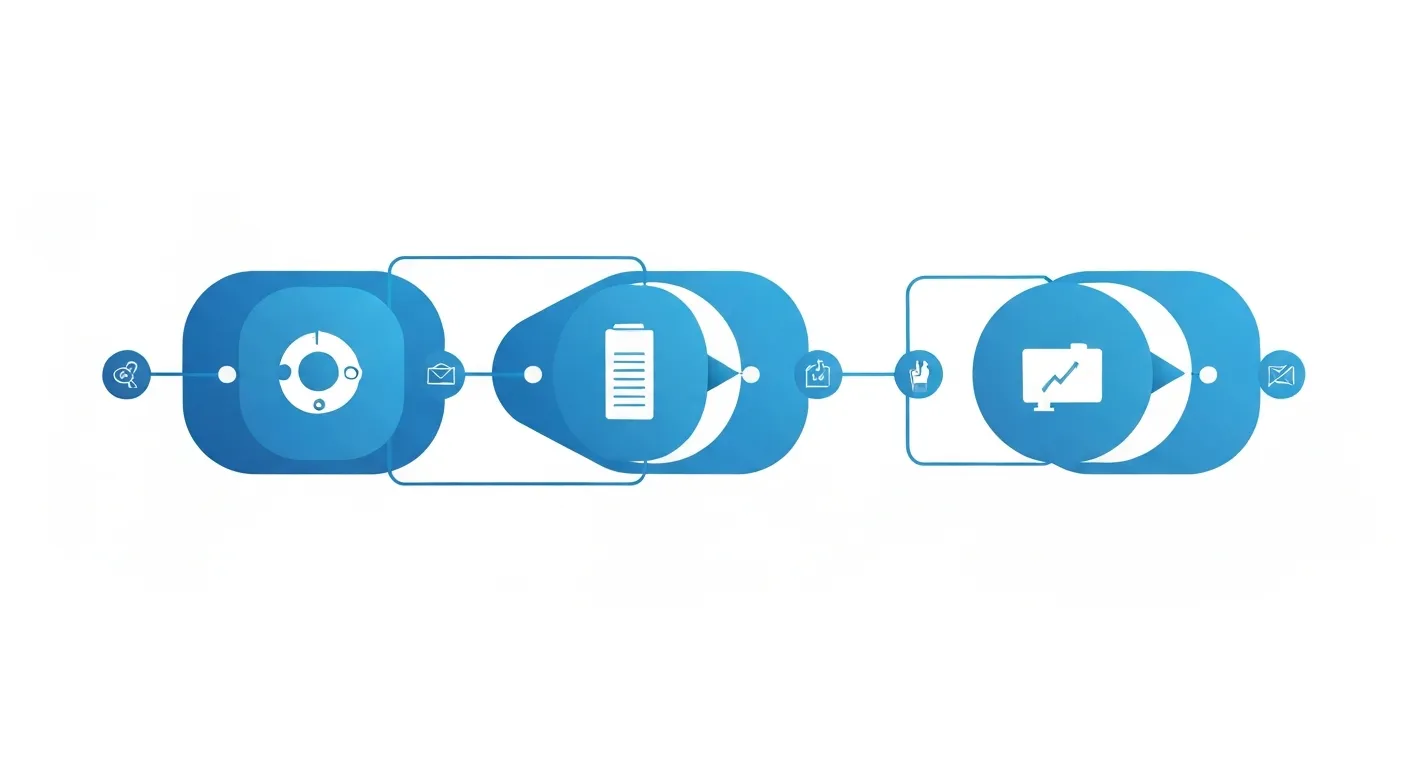
Every meeting generates information that needs capturing, organizing, and sharing. Traditional approaches all involve trade-offs that reduce effectiveness.
Manual Note-Taking Misses Critical Details
When you’re actively taking notes during a meeting, you’re not fully present in the conversation. Typing key points means missing nuance, tone, and context. You capture what you think is important in the moment, which often differs from what proves important later.
Manual notes suffer from inconsistency. Different team members capture different details. When comparing notes afterward, gaps emerge — “Wait, did Sarah say we’re launching in Q2 or Q3?” Without a recording to reference, memories diverge and decisions become unclear.
Speed is another limitation. Conversations move faster than typing. Stakeholders debate three different approaches while you’re still noting down the first one. By the time you look up, the decision is made and you missed the reasoning. You either slow the meeting by asking people to repeat information or accept incomplete notes.
Cloud Meeting Recorders Create Privacy Risks
Services like Otter.ai, Fireflies.ai, and built-in Zoom/Teams transcription solve the capture problem but introduce new concerns. Every word spoken in your meeting gets uploaded to third-party servers for processing.
For discussions involving:
- Unreleased product roadmaps
- Confidential customer information
- Personnel matters or performance reviews
- Financial data or strategic planning
- Competitive intelligence or M&A discussions
…cloud processing creates audit trails outside your control. Data breaches at transcription providers have exposed corporate conversations. Subpoenas can access cloud-stored meeting transcripts. Terms of service changes can retroactively affect how your data is used.
Compliance frameworks like GDPR, HIPAA, and SOC 2 add complexity. Legal and finance teams increasingly prohibit cloud transcription for sensitive meetings, forcing reversion to manual notes or no notes at all.
The Sharing and Organization Problem
Even with good notes — manual or transcribed — distribution becomes challenging. Email attachments scatter information across inboxes. Shared drives fill with files named “Meeting Notes 2026-03-05 (final) (2).docx”. Search across historical meeting notes becomes impossible without dedicated knowledge management systems.
Action items buried in notes get missed. A commitment made 40 minutes into a 60-minute meeting disappears in paragraphs of discussion. Extracting tasks requires manual re-reading of every note.
Local AI transcription solves these problems by combining automatic capture with privacy-preserving processing and structured output formats that support modern knowledge management workflows.
The Local AI Meeting Workflow
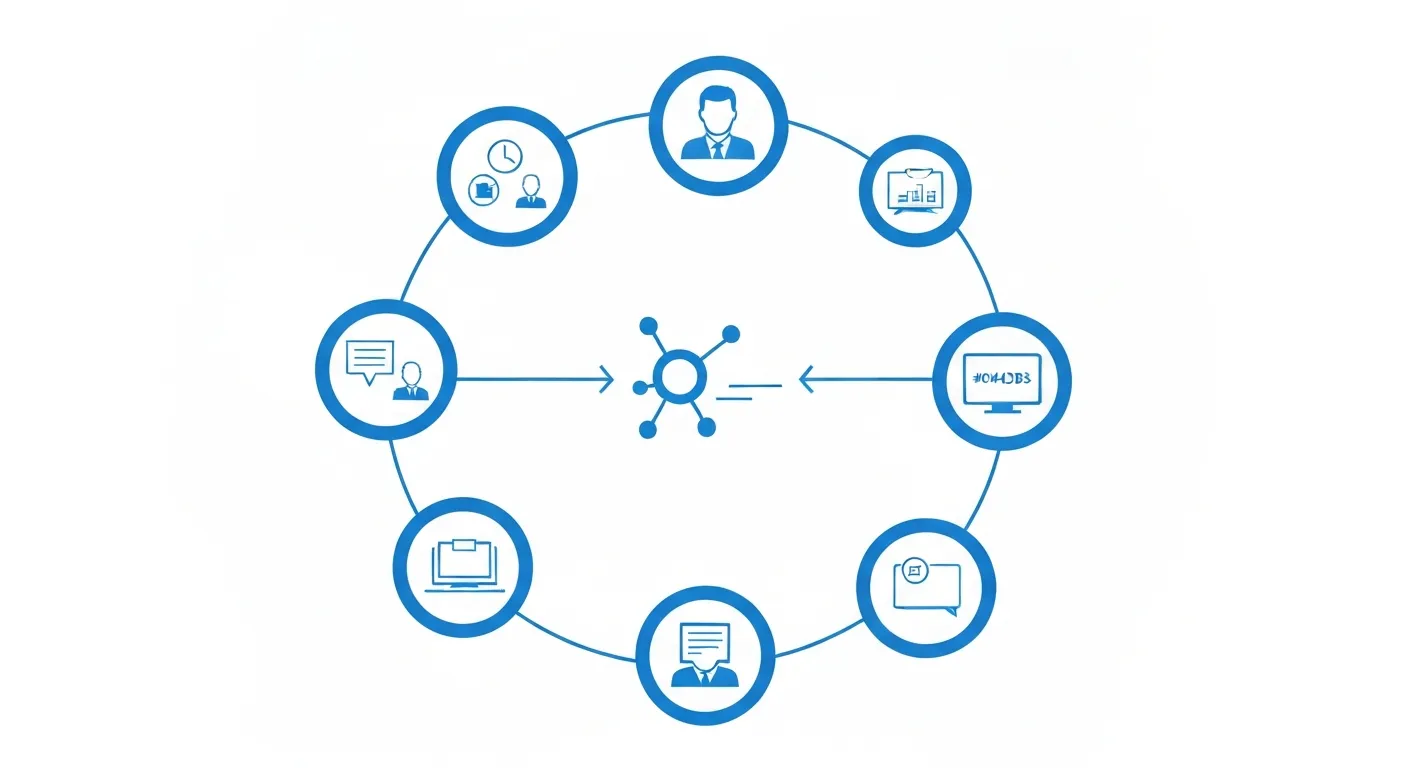
Transforming meeting audio into actionable notes involves four stages, each running entirely on your device without cloud processing.
Stage 1: Record
Capture meeting audio using local recording tools:
- Mac built-in recording: Use MinuteAI’s integrated recorder for in-person meetings or phone calls
- Chrome Extension: Capture Google Meet, Microsoft Teams, or Zoom audio directly in the browser
- System audio recording: Record any meeting app using tools like BlackHole (free) combined with MinuteAI
- Import existing recordings: Drag and drop M4A, MP3, or WAV files from other recording tools
All recording happens locally. Audio never uploads during this stage.
Stage 2: Transcribe
Once recording completes, local AI models convert speech to text:
- Audio file is processed by your selected engine (WhisperKit, FluidAudio, Apple Speech Analyzer, or OpenAI Whisper API)
- Speech recognition runs on your Mac’s GPU and Neural Engine
- Speaker diarization identifies who said what (free tier: up to 3 speakers; Pro: unlimited speakers)
- Timestamps associate each utterance with recording time
- Complete transcript saves to local storage
Transcription accuracy ranges from 85-95% depending on audio quality, accents, and technical terminology. An hour of meeting audio typically processes in 10-15 minutes on Apple Silicon Macs. Processing speed varies by hardware and model size.
Stage 3: Summarize
Raw transcripts are exhaustive but not skimmable. AI summarization distills key points:
- Executive summary: 2-3 paragraph overview of the meeting’s purpose and outcomes
- Key decisions: Extracted choices and commitments made during discussion
- Discussion topics: Organized outline of what was covered, in order
- Important quotes: Highlighted statements worth preserving verbatim
MinuteAI’s AI enhancement feature uses local language models for summarization. Like transcription, this processing happens entirely on your Mac without sending transcript content to cloud APIs.
Note: Free tier includes 10 AI enhancements per month. MinuteAI Pro offers unlimited AI enhancement with advanced summaries and action items.
Stage 4: Extract Action Items
The most valuable output from many meetings is the task list:
- Action items: What needs to be done
- Owners: Who’s responsible
- Deadlines: When it’s due
- Dependencies: What needs to happen first
Local AI models parse transcripts to identify commitments: “John, can you send the updated deck by Friday?” becomes an action item assigned to John with a Friday deadline.
Exported action items integrate with task management tools — copy to Todoist, Things, Asana, or simply paste into a Markdown file for project tracking.
Step-by-Step: From Recording to Organized Notes
Here’s the practical workflow for different meeting scenarios.
Mac: In-Person or Phone Meetings
Before the Meeting
- Open MinuteAI on your Mac
- Select “New Recording” and choose your audio input:
- Built-in microphone for in-person meetings
- External USB mic for better quality
- Phone audio routing (using Bluetooth or cable connection)
- Select WhisperKit as transcription engine for best accuracy (supports 99 languages), or FluidAudio for 50× faster processing
- Enable speaker diarization if multiple participants will speak (free: up to 3 speakers; Pro: unlimited)
During the Meeting
- Click the record button as the meeting starts
- MinuteAI displays live waveform confirming audio capture
- Minimize the app and participate fully — no note-taking needed
- Pause recording if needed for breaks or private sidebar discussions
- Click stop when the meeting concludes
After the Meeting
- Recording auto-saves to your library
- Transcription begins automatically (progress bar shows status)
- Review transcript when processing completes
- Click “AI Enhance” to generate summary and action items
- Export as plain text, Markdown, or copy sections to your knowledge base
Total hands-on time: ~2 minutes before meeting, 5-10 minutes after for review and export.
Chrome Extension: Google Meet, Teams, Zoom
Setup (One-Time)
- Install MinuteAI Chrome Extension from the Chrome Web Store
- Grant microphone access and screen recording permissions
- Configure default transcription engine in extension settings
During the Meeting
- Join your meeting in Chrome (Google Meet, Teams web, Zoom web)
- Click the MinuteAI extension icon
- Select “Record This Tab” to capture meeting audio
- Recording starts — continue meeting normally
- Extension icon shows recording status (red dot)
- Click extension icon and “Stop Recording” when meeting ends
After the Meeting
- Recording automatically sends to MinuteAI desktop app for transcription
- Receive notification when transcript is ready
- Open MinuteAI app to review, enhance, and export notes
The Chrome Extension approach works for remote meetings where you’re a participant but not the host. No need to ask for recording permissions — you’re capturing what you hear, not the meeting itself.
System Audio: Any Meeting App
For meeting apps without direct integration:
- Install BlackHole (free virtual audio driver)
- Configure Multi-Output Device in Audio MIDI Setup to route system audio through BlackHole
- Set MinuteAI’s audio input to BlackHole
- Start recording in MinuteAI before joining meeting
- All system audio (meeting app, notifications, etc.) gets captured
This approach requires more technical setup but works universally with any meeting software.
Automating Meeting Summaries with AI
Manual summarization defeats the purpose of automated transcription. MinuteAI’s AI enhancement uses local language models to generate structured summaries without cloud API calls.
Summary Components
A typical AI-generated meeting summary includes:
Executive Summary
This 45-minute product planning meeting covered Q2 feature priorities, discussed customer feedback on the beta release, and assigned owners for upcoming user research. Key decisions: prioritize mobile app performance over new features, delay API v3 launch to Q3, and allocate budget for five customer interviews.
Key Decisions
- Prioritize mobile performance optimizations in sprint planning
- Delay API v3 public launch from Q2 to Q3 to address beta feedback
- Allocate $5K budget for customer development interviews (5 sessions)
Discussion Topics
- Q2 Planning and Resource Allocation (0:00-15:30)
- Beta Release Feedback Review (15:30-32:00)
- User Research Planning (32:00-45:00)
Action Items
- Sarah: Schedule five customer interviews by March 15
- Mike: Create performance optimization tickets for sprint 12
- Jordan: Draft API v3 delay communication for customers by March 8
- Team: Review and comment on user research discussion guide by March 10
How Local AI Summarization Works
MinuteAI uses quantized language models optimized for Apple Silicon:
- Full transcript is chunked into manageable segments
- Each chunk is analyzed for key information (decisions, action items, topics)
- Results are aggregated into structured summary format
- Post-processing ensures consistency and removes redundancy
Models run entirely on your Mac’s GPU using 4-bit quantization for efficiency. Summary generation for a 60-minute meeting takes 2-5 minutes depending on your Mac’s specs.
Customizing Summary Output
In Settings, configure summary preferences:
- Summary length: Brief (bullets only), Standard (paragraphs + bullets), Detailed (full analysis)
- Focus areas: Emphasize decisions, action items, or discussion topics
- Format: Markdown, plain text, or JSON for automation workflows
- Language: Summaries can be generated in different languages than the source audio

Tips for Better Meeting Transcriptions
Audio quality determines transcription accuracy. Small improvements in capture dramatically affect output quality.
Optimize Your Recording Environment
- Close the door: Hallway conversations and foot traffic add background noise that confuses transcription models
- Mute notifications: System sounds, Slack pings, and phone buzzing get transcribed as “bell sound” or garbled text
- Manage HVAC: If possible, reduce air conditioning/heating fan speed during recording — constant white noise degrades accuracy by 5-10%
- Choose smaller rooms: Large conference rooms create echo; huddle rooms provide cleaner audio
Microphone Selection and Placement
- Built-in Mac mic: Adequate for 1-3 people within 4 feet; struggles with larger groups
- External USB mic: Blue Yeti, Rode NT-USB, or similar omnidirectional mics improve quality significantly for groups
- Mic placement: Center of table, 2-3 feet from speakers, no obstructions
- Avoid laptop keyboards: If typing during recording, use external keyboard positioned away from mic
Multi-Speaker Clarity
Speaker diarization (identifying who spoke when) depends on:
- Distinct voices: Different genders, ages, or accents improve diarization accuracy
- Turn-taking: Overlapping speech confuses models — encourage “one person talks at a time” norms
- Self-identification: Occasionally stating “This is Sarah — I think we should…” helps confirm speaker labels
- Consistent positioning: If speakers move around the room, voice direction changes and confuses diarization
Handling Accents and Technical Language
- Non-native speakers: Whisper handles diverse accents well, but consider slower speech if accuracy drops
- Industry jargon: Create a custom find-and-replace dictionary for common terms (e.g., “Kubernetes” often transcribes as “communities” — replace during review)
- Acronyms: Spell out acronyms verbally in first usage (“We’re using EKS — that’s Elastic Kubernetes Service”) to improve transcription
- Names: Unusual names often mistranscribe; manually correct during review and use consistent spelling
Remote Meeting Considerations
When recording Google Meet, Teams, or Zoom:
- Wired internet: WiFi dropouts create audio gaps; use ethernet when possible
- Request participants minimize background noise: Unmute only when speaking
- Record locally, not cloud: Use MinuteAI’s Chrome Extension rather than built-in meeting recorder to keep audio on your device
- Audio output routing: Ensure meeting audio plays through speakers/headphones that can be captured (not Bluetooth, which has routing limitations)
Converting meeting recordings into organized, searchable notes transforms meetings from ephemeral conversations into valuable knowledge base entries. Local AI transcription makes this workflow practical for daily use without compromising confidentiality or requiring cloud subscriptions.
The investment is minimal: 2 minutes to start recording, 10-20 minutes of automatic processing, 5 minutes for review. The return is comprehensive meeting documentation that supports better follow-through, clearer accountability, and institutional knowledge preservation.
Explore the complete local AI toolkit in our guide to running AI locally on Mac, or learn specialized workflows like summarizing long recordings for extended sessions. Get started with MinuteAI’s meeting recording features at /#pricing.
Record Google Meet & Teams Calls
MinuteAI Chrome Extension captures meeting audio and transcribes locally. Works with Google Meet and Microsoft Teams.
Get Chrome ExtensionRelated Articles
Private AI Workflow for Journalists: Protect Sources with Local Transcription
How journalists use local AI transcription to protect confidential sources. Record, transcribe, and analyze interviews without any cloud exposure.
WorkflowsAnalyze YouTube Videos Locally: Transcribe & Summarize Without Cloud APIs
Download and analyze YouTube videos on your Mac using local AI. Get transcripts, summaries, and key points without sending data to cloud services.
WorkflowsExtract Subtitles from Video Offline: SRT Generation on Mac
Generate SRT subtitle files from any video offline using local AI on your Mac. No cloud services needed — extract accurate subtitles with timestamps.