How to Batch Process Audio & Video Files for Transcription on Mac
Automate transcription of dozens of audio and video files at once using MinuteAI's batch processing and folder monitoring. Complete workflow guide.

Transcribing a single audio file is straightforward. Transcribing 50 podcast episodes, 30 interview recordings, or 100 lecture captures becomes tedious when done one at a time. Batch processing automates the repetitive work, letting you queue dozens of files for overnight transcription while your Mac handles the processing.
Note: Batch processing is a Pro-only feature. Pro plan ($7.99/month, $69.99/year, or $99.99 one-time) enables unlimited batch processing, unlimited recording length, and folder monitoring for fully automated workflows.
The Batch Transcription Use Case
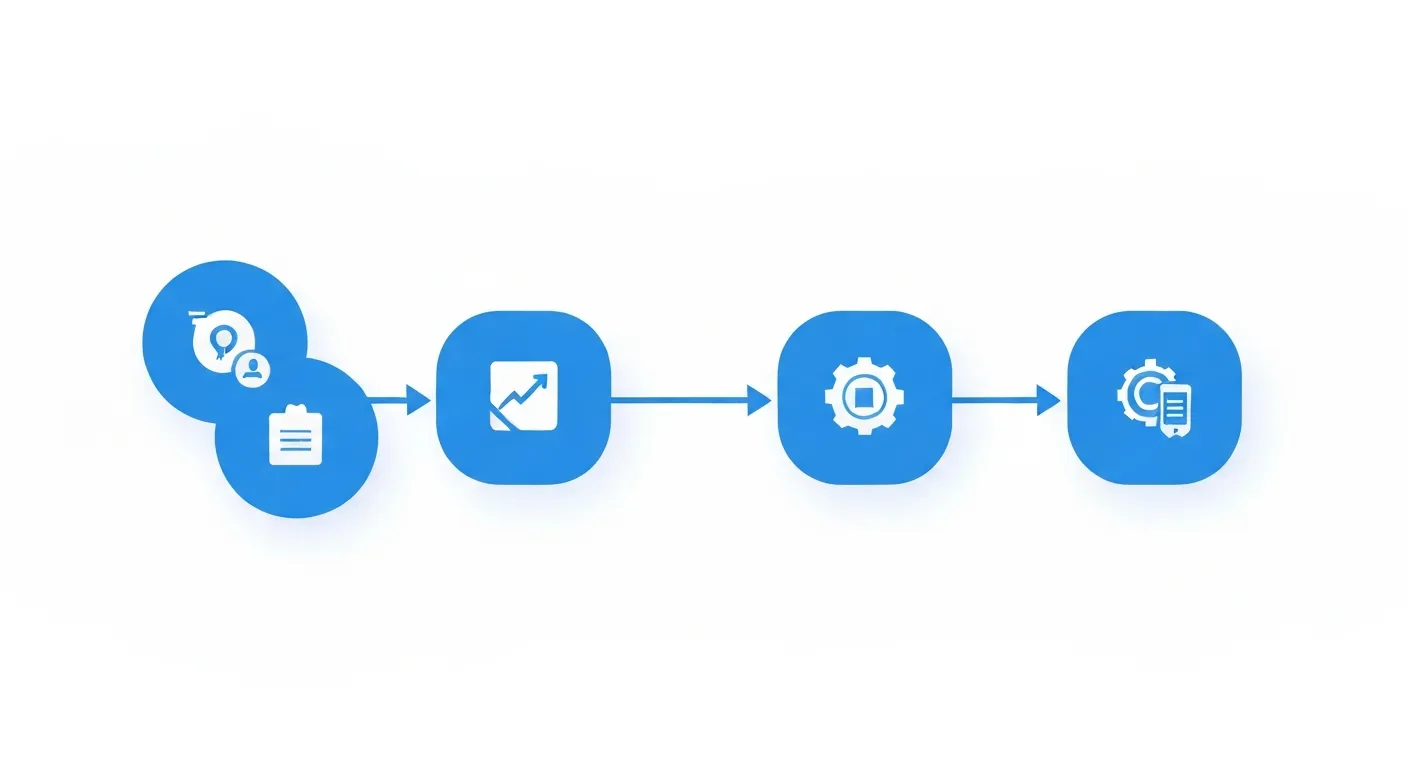
Manual transcription workflows break down at scale. Processing multiple files individually means:
- Waiting for each transcription to complete before starting the next
- Manually selecting each file and clicking “Transcribe”
- Monitoring progress throughout the day
- Managing output files one at a time
This repetitive overhead becomes prohibitive when dealing with content libraries, research archives, or production workflows requiring regular processing of multiple files.
Common Batch Transcription Scenarios
Podcast Producers
A weekly podcast generates:
- Full episode recording (60-90 minutes)
- Individual segment recordings (4-6 files, 10-20 minutes each)
- Interview B-roll (2-3 files, 15-30 minutes)
- Promotional clips (5-10 files, 2-5 minutes each)
Processing 15-20 files per episode manually consumes hours. Batch processing completes the queue overnight, ready for editing the next morning.
Academic Researchers
Qualitative research involves dozens of interviews:
- 30-50 participant interviews (45-90 minutes each)
- Focus group sessions (8-10 recordings, 60-120 minutes each)
- Field notes and observations (20-40 short recordings, 5-15 minutes)
Batch transcription converts weeks of manual work into a weekend of automated processing, accelerating analysis timelines significantly.
Legal Teams
Depositions, client meetings, and case research generate substantial audio:
- Witness depositions (10-20 per case, 2-4 hours each)
- Client consultation recordings (30-50 files, 30-60 minutes)
- Court proceeding audio (varies widely)
Processing these individually delays case preparation. Batch workflows ensure transcripts are available when attorneys need them, without dedicated transcription staff.
Content Creators
YouTube channels, online courses, and tutorial producers manage large content libraries:
- Video archives for captioning (100+ videos, 5-30 minutes each)
- Course lecture recordings (20-40 files per course, 30-60 minutes)
- Interview series (weekly recordings accumulating to 50+ files)
Retroactive captioning or searchable transcript creation for existing content becomes practical only with batch automation.
Corporate Training and HR
Organizations record training sessions, town halls, and knowledge-sharing meetings:
- Weekly training sessions (50+ recordings annually, 45-90 minutes)
- Company-wide meetings (monthly or quarterly, 60-120 minutes)
- Onboarding and orientation recordings (ongoing, 30-60 minutes each)
Making this content searchable and accessible requires transcripts, but manual processing is not cost-effective at scale.
Batch Processing Basics
MinuteAI’s batch processing system queues multiple files and transcribes them sequentially, requiring only initial setup and final review.
Supported File Formats
Batch processing accepts all common audio and video formats:
Audio Formats:
- MP3 (most common podcast/music format)
- M4A (Apple voice memos, iPhone recordings)
- WAV (uncompressed audio, large files)
- FLAC (lossless compression)
- AAC (compressed audio)
- OGG (open-source audio format)
Video Formats:
- MP4 (most common video format)
- MOV (Apple QuickTime, iPhone videos)
- AVI (older Windows format)
- MKV (high-quality video container)
- WebM (web-optimized format)
- M4V (Apple video format)
The transcription engine extracts audio from video files automatically. Video resolution and quality do not affect transcription accuracy (only audio quality matters).
File Size Considerations:
Free tier recordings must be under 10 minutes each. At typical bitrates:
- MP3/AAC audio: ~1-2 MB per minute
- WAV audio: ~10 MB per minute
- MP4 video (1080p): ~50-150 MB per minute
Pro plan has no file size or duration limits. Multi-hour recordings (conference keynotes, full-day workshops) process without issue.
Batch Processing (Pro Feature)
Batch processing is available exclusively in MinuteAI Pro:
Pro Plan Batch Processing:
- Unlimited files in queue
- No duration limits per file
- Sequential processing (hardware-optimized)
- Folder monitoring for automated queue population
- Priority processing allocation
Files process sequentially rather than parallel to optimize Mac performance. Parallel transcription would compete for GPU/Neural Engine resources and slow overall completion time.
Step-by-Step: Batch Transcription Workflow
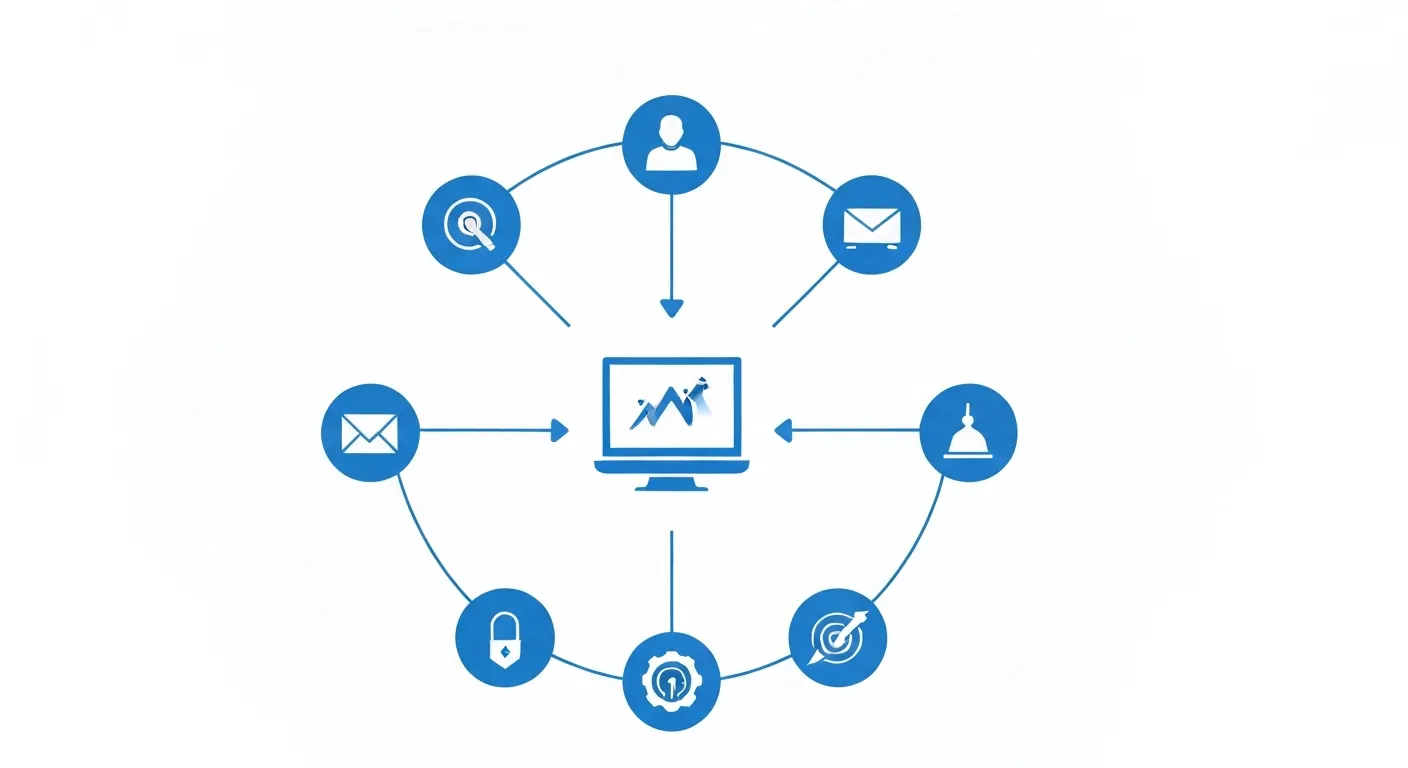
Step 1: Prepare Your Files
Organize files before queuing to streamline post-processing:
File Naming Convention:
Use descriptive, sortable names:
- Podcasts:
YYYY-MM-DD-episode-title-segment.mp3(e.g.,2026-03-15-AI-trends-interview.mp3) - Interviews:
participant-name-YYYYMMDD.m4a(e.g.,smith-john-20260315.m4a) - Lectures:
course-name-week-number-topic.mp4(e.g.,psych101-week03-memory.mp4)
Clear naming simplifies transcript identification when processing completes.
Folder Structure:
Create a processing folder hierarchy:
~/Transcription/
├── To Process/
├── Processing/
├── Completed/
└── Transcripts/
This organization clarifies status at a glance and supports folder monitoring workflows (Pro feature).
Audio Quality Check:
Before batch processing, spot-check file quality:
- Open 2-3 sample files in QuickTime Player
- Listen for background noise, audio distortion, or volume issues
- If quality is poor, consider audio cleanup before transcription (apps like Audacity can remove background noise)
Poor audio quality affects all files in batch. It’s faster to fix input quality once than correct transcripts later.
Step 2: Select Transcription Engine
Choose the engine based on batch size, time available, and accuracy needs:
WhisperKit (Default — Best Accuracy):
- Supports 99 languages
- Highest transcription accuracy
- Moderate speed: ~5-10 minutes to transcribe 1 hour of audio on Apple Silicon
- Best for final transcripts, research, legal work
FluidAudio (Fast Processing):
- Supports 55 languages
- 50× faster than real-time (1 hour of audio in ~1-2 minutes on Apple Silicon)
- Slightly lower accuracy than WhisperKit
- Best for drafts, large batches (100+ files), time-sensitive projects
Apple Speech Analyzer (Built-in):
- Supports 45+ languages
- Fast processing, moderate accuracy
- Uses macOS built-in speech recognition
- Best for quick drafts or when offline processing required
OpenAI Whisper API (Cloud — Optional):
- Requires internet connection and OpenAI API key
- Audio uploads to OpenAI for processing (not local)
- Fast and accurate, but introduces cloud dependency
- Best for users already using OpenAI services who prioritize speed over local processing
Engine Selection for Batch:
For a batch of 20 interview files (1 hour each), expected total processing time:
- WhisperKit: ~3-5 hours
- FluidAudio: ~30-45 minutes
- Apple Speech Analyzer: ~1-2 hours
Processing times vary based on Mac model, system load, and audio complexity.
Step 3: Queue Files for Batch Processing
Method 1: Drag and Drop
- Open MinuteAI
- Select all files in Finder (Cmd+A or Cmd+click multiple files)
- Drag selected files into MinuteAI’s library window
- Files add to transcription queue automatically
- Processing begins immediately
Method 2: File Menu Import
- In MinuteAI, select File → Import Audio/Video Files
- Navigate to folder containing batch files
- Cmd+click to select multiple files (or Cmd+A for all)
- Click “Open”
- Files queue for processing
Method 3: Folder Monitoring (Pro Only)
Set up automated import:
- Go to MinuteAI Preferences → Automation
- Enable “Folder Monitoring”
- Click “Add Watched Folder” and select your “To Process” directory
- Configure action: “Auto-transcribe with [selected engine]”
- Any file added to watched folder auto-queues for transcription
This method enables fully automated workflows — drop files in folder, transcripts appear in library without manual queuing.
Step 4: Configure Batch Settings
Before processing starts, verify settings apply to all queued files:
Transcription Settings:
- Language: Select primary language (or “Auto-detect” for mixed-language content)
- Speaker diarization: Enable if files contain multiple speakers (Free: up to 3 speakers; Pro: unlimited)
- Timestamps: Enable to include time markers in transcript
Output Settings:
- Auto-export: Optionally enable automatic export of completed transcripts as TXT or Markdown
- Export destination: Choose folder for auto-exported files (e.g.,
~/Transcription/Transcripts/) - Naming convention: Transcripts can use original filename or custom pattern
Performance Settings:
- Battery optimization: Enable to pause processing when on battery power (prevents draining laptop during mobile work)
- Thermal management: Throttle processing if Mac temperature exceeds threshold (prevents fan noise disruption)
These settings apply to the entire batch queue.
Step 5: Start Processing and Monitor Progress
Once queued, batch processing begins automatically:
Progress Indicators:
- Queue list shows: File name, duration, current status (Waiting/Processing/Completed)
- Overall progress bar indicates: X of Y files completed
- Current file progress shows: Transcription percentage for active file
- Estimated time remaining: Based on selected engine and historical processing speed
Background Processing:
MinuteAI continues processing when:
- App is minimized
- You switch to other applications
- Screen is locked (Mac awake)
Processing pauses when:
- Mac goes to sleep (adjust Energy Saver settings to prevent sleep)
- You manually pause the queue
- Battery optimization triggers (if enabled and on battery power)
Overnight Processing Strategy:
For large batches:
- Queue all files before end of workday
- Plug in Mac to power
- Adjust Energy Saver: Prevent sleep when plugged in
- Start batch processing
- Leave Mac running overnight
- Review completed transcripts in morning
A Mac mini or iMac (desktop Mac) is ideal for overnight batch processing. MacBook Pro/Air works but requires power connection and sleep prevention settings.
Step 6: Review and Export Transcripts
When processing completes:
Quality Review:
Spot-check a few transcripts for accuracy:
- Open random transcript from batch
- Compare to original audio at 3-4 different timestamps
- Check accuracy of technical terms, names, numbers
- Note any systematic errors (e.g., “machine learning” transcribed as “machine turning”)
If accuracy issues are widespread, consider:
- Using higher-accuracy engine (WhisperKit instead of FluidAudio)
- Improving audio quality before transcription
- Creating custom find-replace dictionary for common misrecognitions
Bulk Export:
Export all transcripts at once:
- Select all completed items in library (Cmd+A)
- Right-click → Export Selected
- Choose format:
- TXT: Plain text, maximum compatibility
- Markdown: Formatted text with headers, timestamps, speaker labels
- PDF (Pro only): Formatted document for sharing or printing
- Select destination folder
- Click “Export”
All transcripts export with original filenames plus format extension (e.g., interview-smith.mp4 becomes interview-smith.txt).
Organizing Output:
Create a workflow for processed transcripts:
- Archive original audio files to external storage
- Organize transcripts by project/topic/date
- Import transcripts to knowledge management system (Obsidian, Notion, DEVONthink)
- Back up transcripts to cloud storage (iCloud, Dropbox) if desired (original audio stays local)
Advanced Batch Workflows
Automated Folder Monitoring Pipeline (Pro)
Create a fully automated end-to-end workflow:
Setup:
- Create folder structure:
~/Podcasting/
├── 1-Raw-Audio/          # Drop recordings here
├── 2-Auto-Transcribing/  # MinuteAI monitors this folder
├── 3-Transcripts/        # Auto-exported transcripts
└── 4-Archive/ # Processed audio files-
Configure MinuteAI:
- Set
~/Podcasting/2-Auto-Transcribing/as watched folder - Enable auto-transcribe with WhisperKit
- Configure auto-export to
~/Podcasting/3-Transcripts/as Markdown
- Set
-
Create Automator or Hazel rule:
- When file appears in
~/Podcasting/1-Raw-Audio/ - Move to
~/Podcasting/2-Auto-Transcribing/
- When file appears in
-
Create second Automator/Hazel rule:
- When transcription completes (transcript appears in
3-Transcripts/) - Move corresponding audio from
2-Auto-Transcribing/to4-Archive/
- When transcription completes (transcript appears in
Result: Drop audio file in 1-Raw-Audio/, transcript automatically appears in 3-Transcripts/, original audio archives. Zero manual intervention.
AI Enhancement Batch Processing
After transcription, enhance all files with AI summarization:
Individual Enhancement:
For each transcript:
- Click “AI Enhance” in transcript view
- Select summary type (Executive Summary, Detailed Notes, Action Items)
- Local AI model processes transcript (2-5 minutes per file)
- Enhanced version includes summary, key points, timestamps
Free tier: 10 AI enhancements per month. Pro: unlimited enhancements.
Pro Batch Enhancement:
Enhance entire batch overnight:
- Select all transcripts in library
- Right-click → “Batch AI Enhancement”
- Choose enhancement template:
- Standard summary for all files
- Custom prompt for specialized processing
- MinuteAI queues all files for enhancement
- Processing runs overnight (similar to transcription batch)
Custom Prompts for Specialized Content (Pro)
Create reusable prompts for specific content types:
Research Interview Prompt:
Analyze this interview transcript and provide:

1. Key themes discussed (3-5 bullet points)
2. Participant's main arguments or perspectives
3. Notable quotes worth highlighting
4. Methodological insights or reflections
5. Connections to research questions [insert research context]

Format as structured Markdown for import to research database.
Podcast Episode Prompt:
Create podcast show notes from this transcript:

1. Episode summary (2-3 sentences)
2. Topics discussed with timestamps
3. Guest bio points mentioned
4. Key takeaways (3-5 bullets)
5. Resources or links mentioned
6. Quotable moments for social media

Format for WordPress blog post.
Legal Deposition Prompt:
Extract from this deposition transcript:

1. Key facts established
2. Witness credibility factors (contradictions, certainty level)
3. Statements relevant to case theory [insert case context]
4. Follow-up questions to consider
5. Exhibits or documents referenced

Maintain strict objectivity and cite transcript timestamps.
Save prompts as templates in MinuteAI for one-click application to batch files.
Multi-Language Batch Processing
For content libraries in multiple languages:
Language-Specific Queues:
Create separate batches by language:
- Sort files by language (e.g., English in one folder, Spanish in another)
- Queue each language group separately
- Set language preference per batch before processing
- Process batches sequentially or on different days
Auto-Detect for Mixed Content:
If files contain various languages:
- Enable “Auto-detect language” in settings
- Queue all files together
- WhisperKit identifies language per file automatically
- Review language detection in completed transcripts
Auto-detection works well for clear single-language files. Mixed-language content within a single file (code-switching, multilingual meetings) requires manual review and potential re-processing with specific language selected.
Performance Optimization for Large Batches
Processing 100+ files requires Mac performance tuning:
Hardware Considerations:
- RAM: 16GB+ recommended for large batches (8GB works but may slow processing)
- Storage: Ensure 50GB+ free space (audio files + transcripts + cache)
- Thermal management: Desktop Macs (Mac Studio, iMac) handle prolonged processing better than laptops
- GPU: Apple Silicon Macs significantly faster than Intel Macs (M1/M2/M3 preferred)
System Optimization:
- Close resource-intensive apps (browsers with many tabs, video editing software, games)
- Disable background processes (cloud sync, Time Machine during processing)
- Connect to power (prevents thermal throttling on laptops)
- Ensure adequate ventilation (don’t block Mac vents)
- Process during off-hours (overnight, weekends) to avoid interrupting daily work
Model Selection for Speed:
For 100-file batch:
- WhisperKit: 10-20 hours processing time (highest accuracy)
- FluidAudio: 1-3 hours processing time (good accuracy, much faster)
Unless transcription perfection is required, FluidAudio often offers the best balance for large batches.
Incremental Processing:
For extremely large batches (500+ files):
- Break into smaller batches (50-100 files each)
- Process one batch per night over a week
- Reduces system strain and allows progress verification between batches
- Easier to identify and fix issues (wrong settings, poor audio quality) early

Real-World Batch Processing Examples
Example 1: Podcast Producer Workflow
Scenario: Weekly podcast with 4 segments per episode, producing 16-20 files monthly.
Setup:
- Files: MP3, 10-30 minutes each
- Language: English
- Engine: WhisperKit (accuracy important for published content)
- Speakers: 2-4 per file (host + guests)
Workflow:
- Monday: Record and edit 4 segments for the week’s episode
- Tuesday morning: Queue all 4 segments in MinuteAI, start batch processing
- Tuesday afternoon: Review transcripts, enhance with AI for show notes generation
- Wednesday: Publish episode with transcripts as blog post and captions
Time Investment:
- Manual per-file transcription: 2-3 hours for 4 files
- Batch processing: 15 minutes setup, 60-90 minutes automated processing, 30 minutes review = ~45 minutes active work
Savings: ~75% time reduction versus manual transcription or paying transcription services.
Example 2: Academic Researcher Workflow
Scenario: Dissertation research with 40 participant interviews.
Setup:
- Files: M4A (iPhone Voice Memos), 45-90 minutes each
- Language: English
- Engine: WhisperKit (research requires accuracy)
- Speakers: 2 per file (researcher + participant)
Workflow:
- Complete all 40 interviews over 2 months
- Process in batches of 10 interviews per weekend
- Weekend 1: Queue 10 files Friday evening, process overnight, review Saturday morning
- Repeat for 4 weekends until all interviews transcribed
- Use AI enhancement for thematic coding support (Pro plan for unlimited enhancements)
Time Investment:
- Professional transcription service: $1-2 per audio minute = $1,800-$7,200 for 40 interviews
- DIY manual transcription: ~4 hours per interview = 160 hours total
- Batch processing: 4 weekends × 3 hours active work = 12 hours total
Savings: ~$7,000 budget savings or 148 hours time savings versus alternatives.
Example 3: Corporate Training Library
Scenario: Organization with 100+ training session recordings for employee knowledge base.
Setup:
- Files: MP4 (recorded Teams meetings), 30-120 minutes each
- Language: English with some Spanish sessions
- Engine: FluidAudio (speed prioritized for large library, accuracy acceptable)
- Speakers: 1-5 per session (trainers + participants)
Workflow:
- Organize files by language and topic
- Process English sessions: Batch of 70 files over a weekend (Mac Studio left running)
- Process Spanish sessions: Batch of 30 files following weekend
- Export all transcripts as Markdown
- Import to company wiki for searchable knowledge base
Time Investment:
- Manual transcription: Impossible at this scale without dedicated staff
- Batch processing: 8 hours total setup and review across 2 weekends
- Result: Entire training library becomes searchable and accessible
Value: Transforms static video archive into searchable, navigable knowledge resource for 500+ employees.
Troubleshooting Batch Processing Issues
Some Files Fail to Process
Check error logs for specific files:
- Unsupported format: Convert using Handbrake or FFmpeg
- Corrupted file: Re-download or re-export from source
- Insufficient disk space: Free up storage, move files to external drive
- File too long (free tier): Upgrade to Pro or split file into sub-10-minute segments
Processing Is Much Slower Than Expected
Diagnosis:
- Check Activity Monitor: CPU/GPU usage should be high during transcription
- Thermal throttling: Mac may reduce performance if overheating (improve ventilation)
- Background processes: Quit other apps consuming resources
- Wrong engine selected: Verify you selected intended engine (FluidAudio vs WhisperKit)
Transcripts Have Consistent Errors
Systematic issues indicate settings problem:
- Wrong language selected: Change language setting and reprocess
- Poor audio quality: All files from same source may have same audio issues
- Engine not suited for content: Technical content may need WhisperKit over Apple Speech Analyzer
- Speaker overlap: Diarization struggles if people talk over each other (enable overlap detection in Pro settings)
Batch Processing Stops Mid-Queue
Common causes:
- Mac went to sleep: Disable sleep in Energy Saver settings
- App crashed: Check Console logs, restart MinuteAI, resume queue
- Battery died: Keep Mac plugged in during batch processing
- Disk full: Free up space, processing resumes automatically
Export Fails for Multiple Files
Issues:
- Permission error: Verify write access to export destination folder
- Filename conflict: Existing files with same names in destination (enable auto-rename in settings)
- Format error: PDF export requires Pro plan (switch to TXT/Markdown on free tier)
Best Practices for Batch Transcription
1. Test Settings on Small Batch First
Before processing 100 files:
- Queue 3-5 representative samples
- Verify transcription quality
- Check export format meets needs
- Adjust settings if needed
- Then process full batch with proven settings
2. Organize Before Processing
Clear file naming and folder structure saves hours during review:
- Use consistent naming conventions
- Group related files (by project, date, speaker)
- Keep source audio and transcripts in parallel folder structures
3. Leverage Metadata
Preserve context in filenames:
- Include date:
2026-03-15-client-meeting.mp4 - Include participants:
interview-sarah-chen-product-feedback.m4a - Include project:
podcast-season02-episode08-ai-trends.mp3
Metadata helps locate specific transcripts months later.
4. Implement Backup Strategy
Transcripts represent hours of processing:
- Auto-export to cloud storage (Dropbox, iCloud) for off-site backup
- Keep original audio files on external drive
- Export critical transcripts as multiple formats (TXT + Markdown + PDF)
5. Schedule Processing During Low-Usage Times
Overnight and weekend processing:
- Frees Mac for daily work
- Avoids thermal throttling during intensive use
- Maximizes batch throughput without disrupting productivity
Batch processing transforms transcription from tedious per-file work into automated workflows suitable for content libraries, research archives, and production pipelines. MinuteAI’s local processing keeps all audio and transcripts under your control while supporting unlimited batches with Pro plan.
For video-specific workflows, explore our guide to transcribing video files locally, or learn about running AI models on Mac for maximum privacy. Download MinuteAI and start batch processing at getminute.app.
Try MinuteAI Free on Mac
Privacy-first AI transcription running entirely on your device. No uploads, no subscriptions required to start.
Download for MacRelated Articles
Apple Intelligence vs Local AI Tools: What's Better for Transcription in 2026?
Compare Apple Intelligence's built-in transcription features with dedicated local AI tools like MinuteAI. Privacy, accuracy, speed, and feature comparison for Mac and iPhone users.
ComparisonsMacWhisper vs MinuteAI: Which Local Transcription App Is Better?
Detailed comparison of MacWhisper and MinuteAI for local AI transcription on Mac. Features, pricing, engines, OCR, and privacy compared side-by-side.
Use CasesPrivate AI Workflow for Journalists: Protect Sources with Local Transcription
How journalists use local AI transcription to protect confidential sources. Record, transcribe, and analyze interviews without any cloud exposure.