Private AI Workflow for Journalists: Protect Sources with Local Transcription
How journalists use local AI transcription to protect confidential sources. Record, transcribe, and analyze interviews without any cloud exposure.

Journalists face a unique threat model: the tools they use to do their jobs can be weaponized against their sources. When transcription happens in the cloud, interview recordings pass through third-party servers where they can be intercepted, subpoenaed, or breached. For investigative reporters working with confidential sources, whistleblowers, or sensitive subjects, cloud-based tools create unacceptable risks. Local AI transcription offers a solution—processing that happens entirely on your device, with no network transmission, no third-party access, and no digital trail leading back to your sources.
Note: Journalist interviews are typically longer than 10 minutes. The free tier supports recordings under 10 minutes each. For professional interview transcription, MinuteAI Pro ($7.99/month, $69.99/year, or $99.99 one-time) is required.
Why Source Protection Demands Local Processing
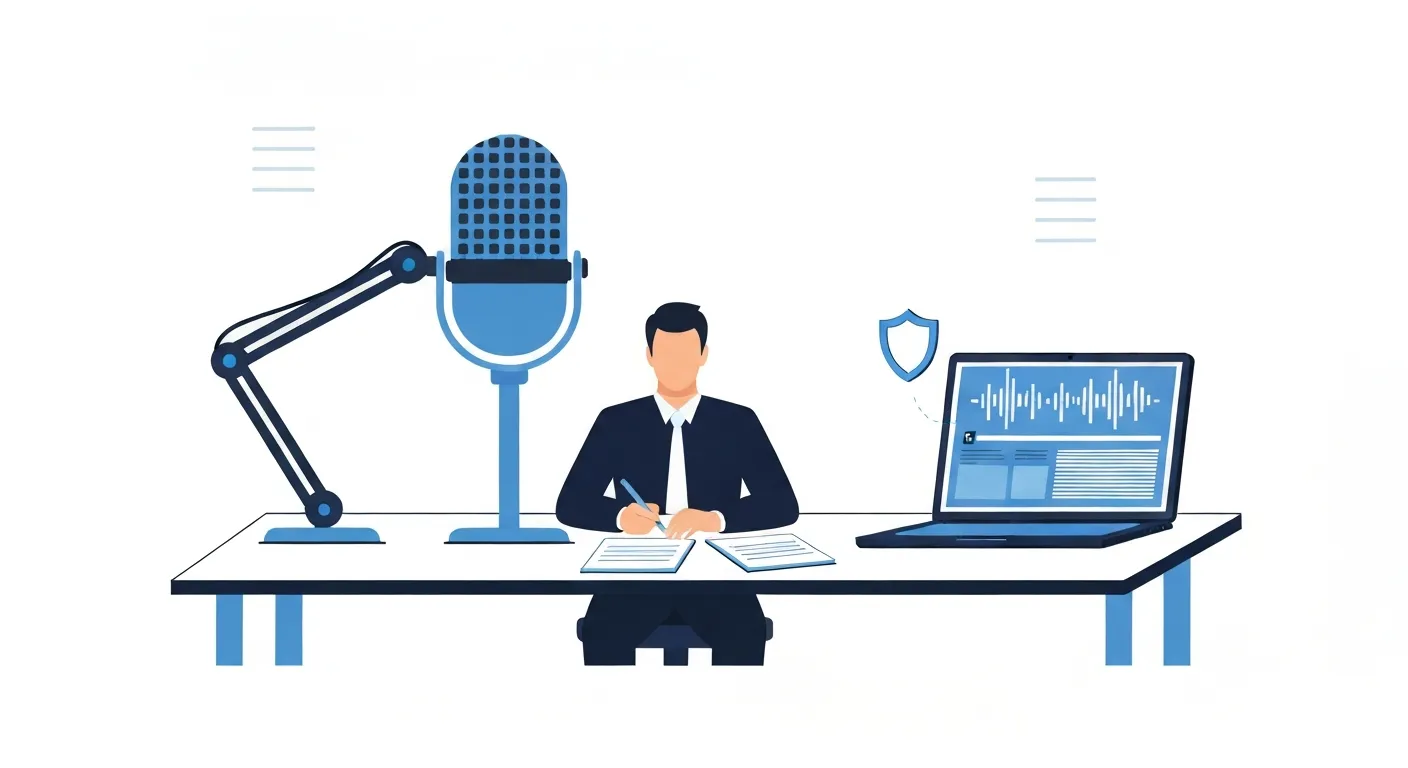
The legal and technical reality of cloud services creates specific dangers for journalists:
Cloud Providers Can Be Compelled to Disclose Data: When you upload interview recordings to services like Otter.ai, Rev, or other cloud transcription platforms, those companies become custodians of your data. This means they can be served with subpoenas, court orders, or national security letters requiring them to turn over your files. Unlike journalists, who often have shield law protections, technology companies have no privilege to refuse these requests.
In several high-profile cases, reporters have had their phone records, emails, and cloud data seized by government agencies investigating leaks. If your interview transcripts are stored on someone else’s servers, you have no practical way to prevent their disclosure if the company receives a valid legal order.
Metadata Leaks Reveal Source Identity: Even if transcript content is encrypted, cloud services collect metadata—IP addresses, upload times, device identifiers, geographic locations, and usage patterns. This metadata can reveal when and where you met a source, how long the conversation lasted, and potentially identify the source through device fingerprinting or network analysis.
For sources who require anonymity to avoid retaliation, prosecution, or physical danger, this metadata represents a critical vulnerability. Local processing eliminates metadata collection because there’s no external service to collect it.
Data Breaches Expose Sources: Cloud services get hacked. In 2023 alone, major data breaches exposed millions of customer records from tech companies that claimed robust security. A breach at a transcription service could expose not just your interview content, but also the identities of sources who were promised confidentiality.
The consequences aren’t theoretical: sources have faced prosecution, job loss, and physical threats after their identities were exposed through compromised communications. Journalists who can’t guarantee source protection lose access to the information that enables investigative reporting.
Terms of Service Override Promises: When you upload to cloud services, you typically grant the provider broad rights to process, analyze, and even use your content to improve their AI models. Even if a company promises privacy today, terms of service can change, companies get acquired, and “anonymized” data can be re-identified through correlation.
Local processing sidesteps these problems entirely. If data never leaves your device, it can’t be subpoenaed from a third party, captured in a breach, or swept up in terms-of-service changes.
No Trust Required: Cloud security relies on trusting the provider to implement proper safeguards, resist inappropriate legal demands, and avoid breaches. Local processing requires no trust—the architecture itself prevents exposure because there’s no external party involved. This “trust no one” model aligns with information security best practices for high-risk scenarios.
A Journalist’s Private Transcription Toolkit

Building a source-protective workflow requires the right combination of hardware, software, and operational security:
Hardware Foundation: Use devices you control completely—a Mac and iPhone running recent macOS and iOS versions. Avoid shared computers, employer-managed devices, or hardware that might have monitoring software. Enable FileVault full-disk encryption on Mac and standard encryption on iPhone to protect data at rest. If devices are lost or seized, encryption prevents access without your password.
MinuteAI on Mac and iPhone: MinuteAI serves as the core transcription tool because it processes audio entirely on-device using local AI models. Record interviews directly in the app or import audio files from secure recording devices. Choose WhisperKit (99 languages), FluidAudio (55 languages, 50× faster), or Apple Speech Analyzer (45+ languages) engines for processing that happens 100% locally with no network access. The app has no telemetry, no analytics, and no capability to upload your data—it’s architecturally incapable of leaking information.
Learn more about running AI locally on Mac to understand how on-device processing works and why it matters for security.
Encrypted Storage: Store recordings and transcripts in encrypted containers using macOS’s built-in encryption or third-party tools like Veracrypt. Even if someone gains physical access to your Mac, encrypted volumes remain inaccessible without the password. For extremely sensitive material, use separate encrypted volumes with different passwords—one for the encrypted drive itself, another for the container holding specific source files.
No Cloud Sync: Disable iCloud Drive, Dropbox, Google Drive, and other cloud storage for folders containing source material. Automatic syncing defeats local processing by uploading files in the background. Keep sensitive files in directories explicitly excluded from any sync service.
Air-Gapped Workflow: For highest-risk sources, conduct interviews and transcription on a device that never connects to networks. Record on iPhone in airplane mode, transfer to Mac via direct cable connection (not Wi-Fi or Bluetooth), transcribe using locally-installed AI models, and store results on an encrypted external drive that’s disconnected when not in use. This air-gapped approach eliminates any possibility of network-based interception.
Secure Communication: When coordinating with sources, use end-to-end encrypted messaging like Signal (set messages to auto-delete) and avoid SMS, email, or phone calls that can be intercepted or logged. For sharing transcripts with editors, use encrypted file transfer rather than email attachments.
Physical Security: Treat your recording devices like you would treat source notebooks—store them securely, don’t leave them unattended, and have a plan for quick secure deletion if devices are at risk of seizure. macOS and iOS support remote wipe, but local processing means there’s nothing in the cloud to subpoena if you successfully wipe your device.
Field Recording to Published Story Workflow
Here’s how the complete workflow protects sources at every step:
Step 1: Secure Recording
Before the Interview: Confirm with your source what protections they need—attribution, anonymization, or complete confidentiality. Explain your technical safeguards so they can make informed decisions about what to share. Get explicit consent to record if required by your organization’s ethics policy or local law.
Use iPhone in airplane mode to record directly into MinuteAI, or use a dedicated digital recorder that writes to local storage without network capability. Avoid recording apps that upload to cloud services, even if they claim to offer an “offline mode”—default network-enabled apps can leak data unintentionally.
During the Interview: Take minimal notes on paper rather than typing into cloud-synced note apps. Physical notebooks don’t create metadata trails. Record in a quiet environment to improve transcription accuracy (background noise degrades AI transcription quality, requiring more manual cleanup later).
After the Interview: Immediately transfer recordings to your Mac via cable connection. Delete the recording from iPhone once confirmed transferred, then verify deletion by checking iPhone storage settings. This limits exposure window—recordings exist on your phone for the shortest possible time.
Step 2: Local Transcription
Import to MinuteAI: Open MinuteAI on your Mac, drag the audio file into the app (or navigate to File → Import if the file is in a secure location). The app loads the audio locally without copying it elsewhere.
Choose Your Engine: Select WhisperKit (99 languages), FluidAudio (55 languages, 50× faster), or Apple Speech Analyzer (45+ languages) as your transcription engine (all run 100% on-device). Avoid cloud engines like OpenAI Whisper API for sensitive material. The engine choice affects accuracy and speed but not security—all local engines process on your Mac without network transmission.
Transcribe: Start transcription and let the AI process your audio. For a one-hour interview, expect 10-30 minutes processing time depending on your Mac’s processor and the model size you choose. During transcription, monitor Activity Monitor to confirm MinuteAI isn’t making network connections (it won’t—the app has no network code for transcription, but verification provides peace of mind).
Review and Edit: Once transcribed, review the text for accuracy. AI transcription is typically 90-95% accurate on clear recordings but can misunderstand technical terms, names, or accented speech. Use MinuteAI’s editing interface to correct errors while listening to the source audio for context.
Step 3: AI Enhancement for Analysis
Generate Summaries: Use MinuteAI’s AI enhancement features (powered by local MLX models or Apple Intelligence) to summarize long interviews into key themes and quotes. This happens entirely on-device—you can request summaries, key point extraction, or custom analysis without sending content to external AI services. Free tier includes 10 AI enhancements per month; Pro offers unlimited AI enhancement.
Extract Quotes: Instead of manually searching through pages of transcript, use AI to identify quotable statements, attributable claims, or important admissions. Ask the local AI model: “Extract all direct quotes about [topic]” or “Identify claims that would require fact-checking.”
Identify Themes: For multi-source stories with several interviews, use AI to identify patterns across transcripts. Process each interview individually with prompts like “What are the main themes in this interview?” then synthesize patterns manually to preserve source separation.
Step 4: Secure Export and Integration
Export Strategically: Export only what you need from MinuteAI. For most stories, you need selected quotes and context, not full transcripts. Export relevant sections as plain text files saved in your encrypted storage location. This minimizes the amount of sensitive data that exists in usable formats.
Anonymize When Necessary: If your source requires anonymization, edit exported text to remove identifying information before integrating it into your draft. Replace names with pseudonyms or role descriptions (“a government employee familiar with the policy” rather than the person’s name). Remove identifying details about locations, timing, or circumstances that could narrow down identity.
Integrate into Writing Tool: Copy anonymized quotes and context into your writing environment (Word, Google Docs, or whatever your publication uses). At this point, the material has been processed to remove source identifiers, so cloud-based writing tools create less risk. But remember: full transcripts should never enter cloud writing tools.
Verify and Fact-Check: Use the original audio and transcript (stored locally) to verify quotes are accurate and in-context. Fact-check claims made by sources against documentary evidence. This verification happens locally—you’re not sending audio or transcripts to external services for verification.
Step 5: Secure Deletion
After Publication: Once your story is published and the opportunity for follow-up reporting has passed, securely delete source recordings and transcripts. On Mac, use srm (secure remove) command or third-party secure deletion tools that overwrite data multiple times. Standard deletion just removes file pointers, leaving data recoverable—secure deletion makes recovery effectively impossible.
Exception for Ongoing Investigations: For long-term investigative projects with continuing source relationships, retain encrypted backups on an external drive stored in a secure physical location (safe deposit box, office safe, etc.). This protects against device failure while maintaining security.
Document Retention Policy: Follow your news organization’s document retention policy, which typically balances the need to preserve evidence for legal defense (if your reporting is challenged) against the privacy interests of sources. Coordinate with editors and legal counsel on retention decisions.
Protecting Digital Trails
Beyond technical tools, operational security practices protect sources from digital surveillance:
Minimize Digital Footprints: The best way to protect data is not to create it. Before recording, consider whether you really need a recording or if handwritten notes suffice. Every digital file is a potential exposure point—the fewer files you create, the less there is to seize, subpoena, or breach.
No Cloud Sync, Ever: Disable automatic backup and sync for sensitive files. iCloud, Google Drive, Dropbox, and Time Machine backups can all create copies in locations you don’t control. For Time Machine, either exclude sensitive directories or use an encrypted external drive for backups that you physically secure.
Compartmentalize: Keep source material separate from your general work files. Use different folders, different encrypted volumes, or even different user accounts on your Mac for sensitive projects. If one area is compromised, compartmentalization limits exposure.
Device Passwords and Biometrics: Use strong passwords (not Touch ID or Face ID) for devices storing sensitive material. Biometric locks can be compelled by court order in some jurisdictions, but passwords are often protected as testimonial evidence under the Fifth Amendment. Check local law and your organization’s security guidance.
Avoid Unnecessary Copies: Each time you copy a file—to edit it, email it, back it up—you create another location where it exists. Minimize copies by editing original files in place (with version history managed through secure local backups) rather than creating multiple drafts scattered across different directories.
Network Isolation: Work on sensitive transcription offline. Put your Mac in airplane mode, disconnect from Wi-Fi, and disable Bluetooth while working with source material. This prevents any application—even unrelated background apps—from making network connections that could leak data inadvertently.
Case Study: Investigative Reporting Workflow
Consider a hypothetical investigative project into corporate fraud. A source working at a large company reaches out with evidence of systematic accounting manipulation. They agree to an on-the-record interview but fear retaliation if their identity is exposed before publication.
The Reporter’s Workflow:
-
Initial Contact: Source reaches out via Signal with end-to-end encryption. Reporter and source agree to meet in person to avoid digital records of the interview location.
-
Recording: Reporter uses iPhone in airplane mode to record a 90-minute interview directly into MinuteAI. No cloud services involved, no metadata generated beyond the local timestamp.
-
Transfer: After the interview, reporter immediately connects iPhone to Mac via Lightning cable and imports the recording into MinuteAI on Mac. Recording is deleted from iPhone and trash permanently erased.
-
Transcription: Reporter uses WhisperKit (100% on-device) to transcribe the interview on a Mac with Wi-Fi disabled. Transcription takes 25 minutes, producing a 15,000-word transcript with 92% accuracy.
-
Review: Reporter reviews transcript while listening to audio, correcting technical terminology and names. Identifies key quotes and claims requiring fact-checking.
-
AI Analysis: Using MinuteAI’s local AI enhancement, reporter generates a summary of key themes and extracts a list of specific factual claims made by the source. This analysis happens locally without sending data to ChatGPT or other cloud AI services.
-
Fact-Checking: Reporter uses the structured claims list to research documentary evidence (SEC filings, internal documents the source provided, expert consultations). Verification happens independently of the transcript.
-
Story Draft: Reporter exports anonymized quotes (source is identified as “a senior accounting employee familiar with the company’s practices”) and integrates them into a Google Docs draft shared with editors. Full transcript remains encrypted on the Mac.
-
Pre-Publication: Legal counsel reviews the story. Reporter provides necessary context from the transcript to support libel defense but doesn’t share the source’s identity or full transcript.
-
Post-Publication: After the story publishes and source confirms they haven’t faced internal investigation, reporter securely deletes the original audio and transcript. Encrypted backup is stored on an external drive in a safe deposit box in case of future legal challenges to the reporting.
Outcome: The story publishes without exposing the source’s identity. Because the interview was recorded and transcribed entirely locally, there’s no third-party record to subpoena. The company attempts to identify the source through internal investigation but finds no digital trail leading back to them. The source remains employed and safe, and the reporter can continue receiving information.
This workflow demonstrates how local processing protects sources when cloud services would create vulnerabilities.

Getting Started with Source-Protective Transcription
Ready to build a journalism workflow that protects sources? Here’s your implementation plan:
Immediate Steps:
- Download MinuteAI for Mac and iPhone from the App Store (free tier: unlimited recordings up to 10 minutes each)
- Install a local AI transcription engine (WhisperKit, FluidAudio, or Apple Speech Analyzer)
- Upgrade to MinuteAI Pro ($7.99/month, $69.99/year, or $99.99 one-time) for professional interview transcription (recordings over 10 minutes), unlimited AI enhancement, and unlimited batch processing
- Enable FileVault encryption on your Mac if not already enabled
- Create an encrypted folder for source material using macOS’s built-in encryption
- Disable iCloud Drive and other cloud sync for sensitive directories
Best Practices:
- Record interviews on devices you control, in airplane mode when possible
- Transfer recordings via cable, never via Wi-Fi or email
- Transcribe using local AI engines only (learn why local processing matters)
- Store transcripts in encrypted containers with secure passwords
- Verify no network connections during transcription (check Activity Monitor)
- Delete recordings from capture devices immediately after transfer
- Export only necessary quotes, not full transcripts
- Securely wipe files when retention is no longer necessary
Organizational Policy: If your news organization doesn’t have guidelines for secure transcription, advocate for policies that:
- Recommend or require local processing for confidential sources
- Prohibit cloud transcription services for sensitive material
- Provide training on encryption and secure deletion
- Support journalists who face legal challenges to protect sources
The tools exist to protect sources in the digital age. What’s required is the commitment to use them. MinuteAI provides the technical foundation for source-protective journalism—transcription that happens entirely on your device, with no cloud exposure, no third-party access, and no digital trail. Explore MinuteAI for journalists to see how local AI transcription protects the sources that make investigative journalism possible.
Press freedom depends on source protection. Source protection depends on tools that keep confidential information confidential. That means local processing, encryption, and operational security—not hoping that cloud services will resist subpoenas or avoid breaches. Use tools that make source protection architectural, not aspirational.
Try MinuteAI Free on Mac
Privacy-first AI transcription running entirely on your device. No uploads, no subscriptions required to start.
Download for MacRelated Articles
MacWhisper vs MinuteAI: Which Local Transcription App Is Better?
Detailed comparison of MacWhisper and MinuteAI for local AI transcription on Mac. Features, pricing, engines, OCR, and privacy compared side-by-side.
WorkflowsAnalyze YouTube Videos Locally: Transcribe & Summarize Without Cloud APIs
Download and analyze YouTube videos on your Mac using local AI. Get transcripts, summaries, and key points without sending data to cloud services.
ComparisonsDescript Alternative That Works Offline: Edit Transcripts Locally with MinuteAI
Need a Descript alternative that works without internet? MinuteAI transcribes and processes audio entirely on-device with multiple AI engines.