How to Run AI Locally on Mac: Complete Guide to On-Device Transcription
Learn how to run AI models locally on your Mac for private, offline transcription. Set up WhisperKit, FluidAudio, and Apple Speech for on-device AI processing.

How to Run AI Locally on Mac: Complete Guide to On-Device Transcription
The privacy implications of cloud-based AI services are becoming impossible to ignore. Every audio file you upload to transcription services gets processed on someone else’s servers, stored in their databases, and potentially used to train their models. For professionals handling sensitive information—lawyers, doctors, journalists, researchers—this creates an unacceptable risk.
Running AI locally on your Mac eliminates these concerns entirely. With Apple Silicon’s neural engine and optimized local AI frameworks, you can now get cloud-quality transcription without your data ever leaving your device. This guide shows you exactly how to set up and run local AI transcription on macOS.
Why Run AI Locally on Your Mac?
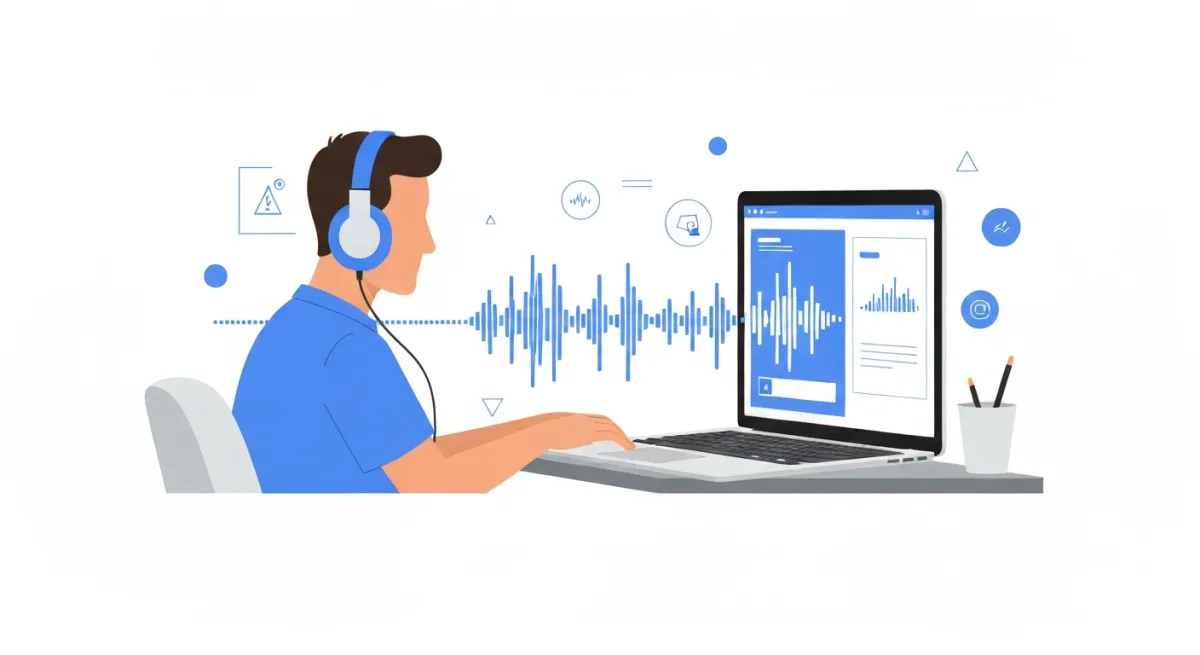
The shift to local AI processing isn’t just about privacy—though that alone is reason enough for many users. Here’s what you gain by keeping AI on-device:
Complete Privacy and Data Control
When you run AI locally, your audio files never touch the internet. No uploads to AWS servers, no API calls logging your requests, no terms of service that reserve the right to use your data for model training. This is critical for:
- Medical professionals transcribing patient consultations (HIPAA compliance)
- Legal teams processing confidential client recordings
- Journalists protecting source interviews
- Businesses handling proprietary information
- Anyone who values digital privacy
Zero Latency and Offline Capability
Cloud APIs introduce network latency—sometimes adding several seconds per request. Local AI processing happens instantly because everything runs on your Mac’s neural engine. More importantly, you can transcribe anywhere:
- On flights without WiFi
- In remote locations with poor connectivity
- In secure facilities that block internet access
- During internet outages
Your transcription workflow never depends on external infrastructure.
Cost Elimination
Cloud transcription services charge per minute of audio. Otter.ai costs $16.99/month for premium. Descript charges $24/month. OpenAI’s Whisper API costs $0.006 per minute—which sounds cheap until you’re processing hours of content monthly.
Local AI engines (WhisperKit, FluidAudio, Apple Speech) are free to use as built-in capabilities. MinuteAI’s free tier covers recordings under 10 minutes each with unlimited recordings. Pro subscription ($7.99/month, $69.99/year, or $99.99 one-time) unlocks unlimited recording lengths and batch processing. For heavy users, local processing eliminates per-minute fees entirely.
Faster Processing with Apple Silicon
Thanks to Apple’s Neural Engine optimization, local transcription on M-series chips often matches or beats cloud API speed—especially for shorter files where network latency dominates. A 5-minute audio file might take 8 seconds on your M2 Mac versus 12+ seconds with API round-trip time.
What You Need: Apple Silicon & Local AI Models
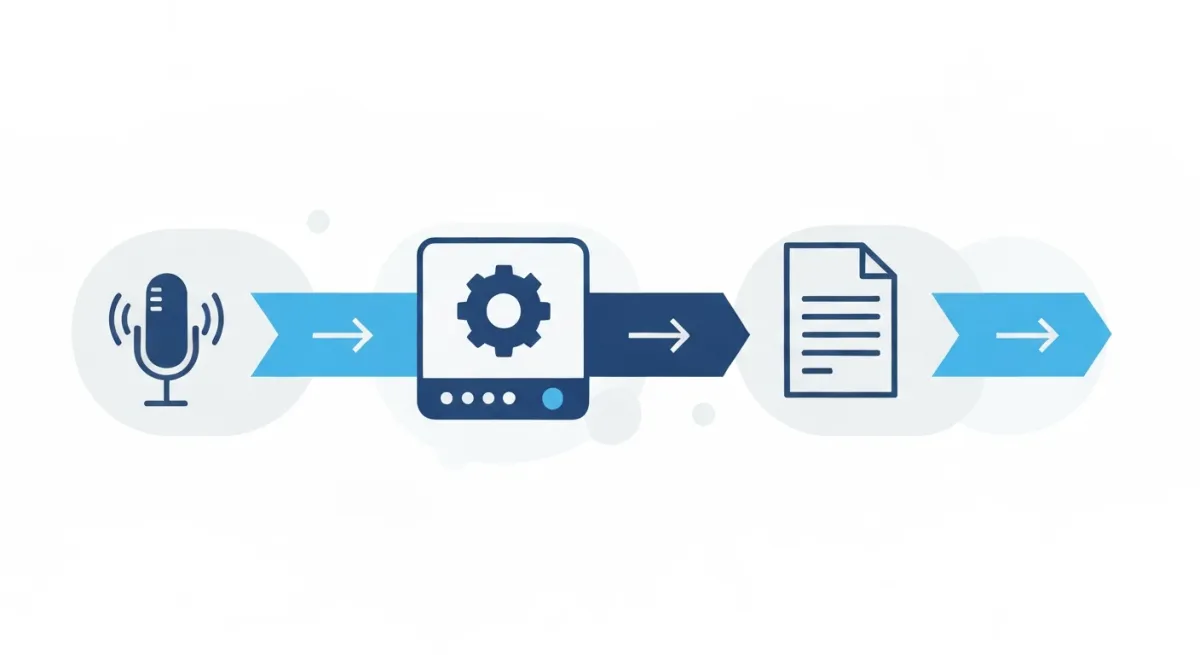
Running AI locally on Mac requires modern hardware and compatible AI frameworks. Here’s what you need:
Hardware Requirements
Apple Silicon (M1, M2, M3, or newer) is essential. Intel Macs can technically run some local AI models, but performance is 5-10x slower without the Neural Engine. Specific considerations:
- M1 Macs: 8GB RAM works for small models. 16GB+ recommended for larger, more accurate models.
- M2/M3 Macs: Better Neural Engine performance. The M2 Pro/Max with 32GB+ RAM can run the largest Whisper models smoothly.
- Storage: Models range from 150MB (tiny) to 3GB (large). Budget 5-10GB for multiple model variants.
Available Local AI Engines
Several frameworks now bring production-quality AI transcription to macOS:
WhisperKit – OpenAI’s Whisper model optimized for Apple Silicon using Core ML. Excellent accuracy across 99 languages. Models range from tiny (150MB, fast but less accurate) to large (3GB, highly accurate but slower). Best balance: medium or small models.
FluidAudio – Purpose-built for Mac transcription with aggressive optimizations. Faster than WhisperKit on M1/M2 chips, especially for real-time recording. Supports English, Spanish, French, German, and growing.
Apple Speech Framework – Apple’s native speech recognition API. Lightning-fast, deeply integrated with macOS, but limited to ~50 languages and occasionally less accurate than Whisper on technical content or accents.
MLX Framework – Apple’s new machine learning framework for researchers and developers. Requires more technical setup but offers maximum flexibility for custom models.
For most users, WhisperKit provides the best accuracy-speed tradeoff, while FluidAudio wins for real-time recording scenarios.
Step-by-Step: Setting Up Local AI Transcription
You have three approaches depending on your technical comfort level:
Option 1: Using MinuteAI (Easiest – No Technical Setup)
MinuteAI is a native Mac app that bundles local AI engines with a clean interface. This is the fastest way to start transcribing locally:
- Download MinuteAI from the official website
- Install and open the app (it’s a standard Mac .dmg installer)
- Select your transcription engine in Settings:
- Choose WhisperKit for best accuracy
- Choose FluidAudio for fastest real-time performance
- Choose Apple Speech for instant results on standard English
- Record or import audio:
- Click Record to capture audio live from your microphone
- Or drag-and-drop audio/video files (MP4, MOV, MP3, WAV, etc.)
- Transcribe: Click the Transcribe button. Processing happens entirely on-device.
- Export: Save as plain text, Markdown, SRT subtitles, or copy to clipboard
The entire workflow takes under 60 seconds for a typical meeting recording. No API keys, no account creation, no internet required.
Option 2: Command-Line with whisper.cpp (For Developers)
If you prefer terminal workflows or want to integrate transcription into scripts:
# Install Homebrew if you don't have it
/bin/bash -c "$(curl -fsSL https://raw.githubusercontent.com/Homebrew/install/HEAD/install.sh)"

# Install whisper.cpp (optimized C++ implementation)
brew install whisper-cpp

# Download a Whisper model (one-time setup)
bash ./models/download-ggml-model.sh medium

# Transcribe an audio file
whisper-cpp -m models/ggml-medium.bin -f audio.mp3

# Output appears as text in terminal
# Add --output-txt to save as file
whisper-cpp -m models/ggml-medium.bin -f audio.mp3 --output-txt
The medium model provides excellent accuracy with reasonable speed on M1+ Macs.
Option 3: Using MLX Framework (Advanced)
For maximum flexibility and customization:
# Install MLX and dependencies
pip install mlx-whisper

# Run transcription with Python
python -m mlx_whisper --model medium --file audio.mp3
MLX gives you programmatic control over model parameters, batch processing, and custom fine-tuning.
Comparing Local AI Engines for Transcription
Different engines excel at different tasks. Here’s how they stack up:
| Feature | WhisperKit | FluidAudio | Apple Speech | OpenAI API |
|---|---|---|---|---|
| Privacy | 100% local | 100% local | 100% local | Cloud (data uploaded) |
| Offline | ✅ Yes | ✅ Yes | ✅ Yes | ❌ No (requires internet) |
| Accuracy | Excellent | Very Good | Good | Excellent |
| Speed (M2) | ~3x realtime* | ~4x realtime* | ~10x realtime* | Variable (network dependent) |
| Languages | 99 languages | 55 languages | 45+ languages | 99 languages |
| Cost | Free (built-in) | Free (built-in) | Free (built-in) | $0.006/min |
| Speaker IDs | ❌ No | ❌ No | ❌ No | ❌ No |
| Timestamps | ✅ Word-level | ✅ Word-level | ✅ Word-level | ✅ Word-level |
*Speed varies by hardware, model size, and audio content.
When to use each:
- WhisperKit: Default choice for most users. Best accuracy for technical content, accents, multilingual audio.
- FluidAudio: Real-time recording scenarios where speed matters more than maximum accuracy.
- Apple Speech: Quick transcription of clear English audio when you need instant results.
- OpenAI API: Only when you need absolute maximum accuracy and privacy isn’t a concern.
For comparing cloud vs local AI architectures in depth, see our guide on ChatGPT vs Local AI.
Real-World Performance on Apple Silicon
Actual transcription speed depends on your Mac’s chip and RAM. Here are representative benchmarks for a 10-minute audio file:
M1 MacBook Air (8GB RAM)
- WhisperKit (small model): 3.2 minutes
- FluidAudio: 2.4 minutes
- Apple Speech: 1.1 minutes
- RAM usage: 2-4GB during transcription
M2 MacBook Pro (16GB RAM)
- WhisperKit (medium model): 2.8 minutes
- FluidAudio: 2.0 minutes
- Apple Speech: 0.9 minutes
- RAM usage: 3-5GB during transcription
M3 Max Mac Studio (64GB RAM)
- WhisperKit (large model): 2.1 minutes
- FluidAudio: 1.6 minutes
- Apple Speech: 0.7 minutes
- RAM usage: 4-8GB during transcription
Note: Speed varies by hardware, model size, and audio content. These benchmarks represent typical performance for clear audio recordings.
Battery Impact: On laptops, transcription uses roughly 15-20% battery per hour of audio processed. Plug in for long transcription sessions to maintain battery health.
Thermal Performance: Apple Silicon stays remarkably cool during AI processing. Even extended transcription sessions rarely trigger significant fan noise on M2/M3 Macs.
Get Started with Local AI Transcription
Running AI locally on your Mac gives you privacy, speed, and cost savings that cloud services simply can’t match. With Apple Silicon’s Neural Engine, you get cloud-quality results without the cloud risks.
The easiest way to start is with MinuteAI—it handles all the technical setup and gives you a clean interface for local transcription. Download it, select your preferred engine, and start transcribing privately.
For specific workflows, check out our guides on transcribing video files locally and comparing privacy-focused alternatives to Otter.ai.
Your data, your device, your privacy. That’s local AI.
Try MinuteAI Free on Mac
Privacy-first AI transcription running entirely on your device. No uploads, no subscriptions required to start.
Download for MacRelated Articles
How to Transcribe Google Meet & Teams Meetings with MinuteAI Chrome Extension
Step-by-step guide to using MinuteAI's free Chrome extension for transcribing Google Meet and Microsoft Teams meetings privately, with local AI processing.
ComparisonsMacWhisper vs MinuteAI: Which Local Transcription App Is Better?
Detailed comparison of MacWhisper and MinuteAI for local AI transcription on Mac. Features, pricing, engines, OCR, and privacy compared side-by-side.
Use CasesPrivate AI Workflow for Journalists: Protect Sources with Local Transcription
How journalists use local AI transcription to protect confidential sources. Record, transcribe, and analyze interviews without any cloud exposure.