Convert PDF to Searchable Text Offline on Mac
Extract and search text from PDF documents offline using local AI on your Mac. No cloud uploads needed for OCR and text extraction.

Cloud-based PDF processing services want you to upload sensitive documents to their servers for text extraction and OCR. But confidential contracts, medical records, legal briefs, and financial documents shouldn’t leave your computer. Your Mac already has powerful tools for converting PDFs to searchable text completely offline, and local AI makes the process even better.
Why Process PDFs Locally?
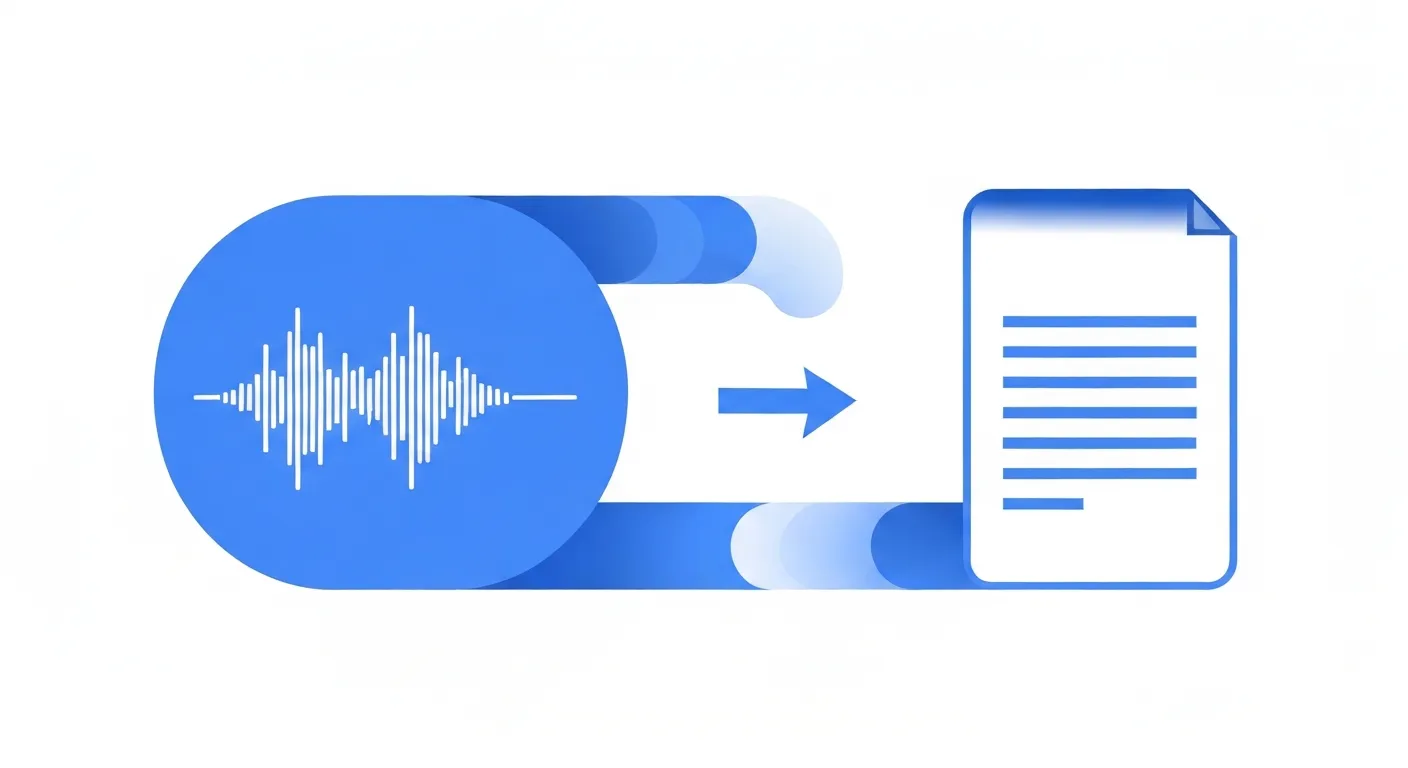
The case for offline PDF text extraction goes beyond privacy—it’s about control, cost, and capability:
Confidential Documents Stay Confidential: When you upload a PDF to a cloud service for OCR or text extraction, you’re trusting a third party with potentially sensitive information. Legal documents, medical records, proprietary research, financial statements, and personal correspondence all contain information that shouldn’t be transmitted to external servers. Processing locally eliminates this risk entirely because your files never leave your device.
No File Size or Volume Limits: Cloud services impose restrictions—often 50MB per file, or limits on monthly processing volume. With local processing, your only limit is your hard drive space and processing power. Need to extract text from a 500-page scanned document? A folder of 100 PDFs? No problem, and no additional fees.
No Subscription Required: Most cloud PDF tools operate on subscription models, charging monthly fees for features you might use occasionally. Local tools typically involve one-time purchases or are built into macOS, eliminating recurring costs. For professionals who process PDFs regularly, this represents significant long-term savings.
Faster Bulk Processing: Once you set up a local workflow, processing multiple PDFs happens as fast as your Mac can handle them. No upload time, no queuing on remote servers, no waiting for cloud processing. For batch operations involving dozens or hundreds of files, local processing is dramatically faster.
Works Without Internet: Airplane mode, remote locations, network outages, or simply preferring to work disconnected—local processing works regardless of connectivity. This reliability matters for professionals who can’t afford downtime.
The fundamental principle: your documents are yours, and processing them shouldn’t require sending them elsewhere.
How Local PDF Text Extraction Works
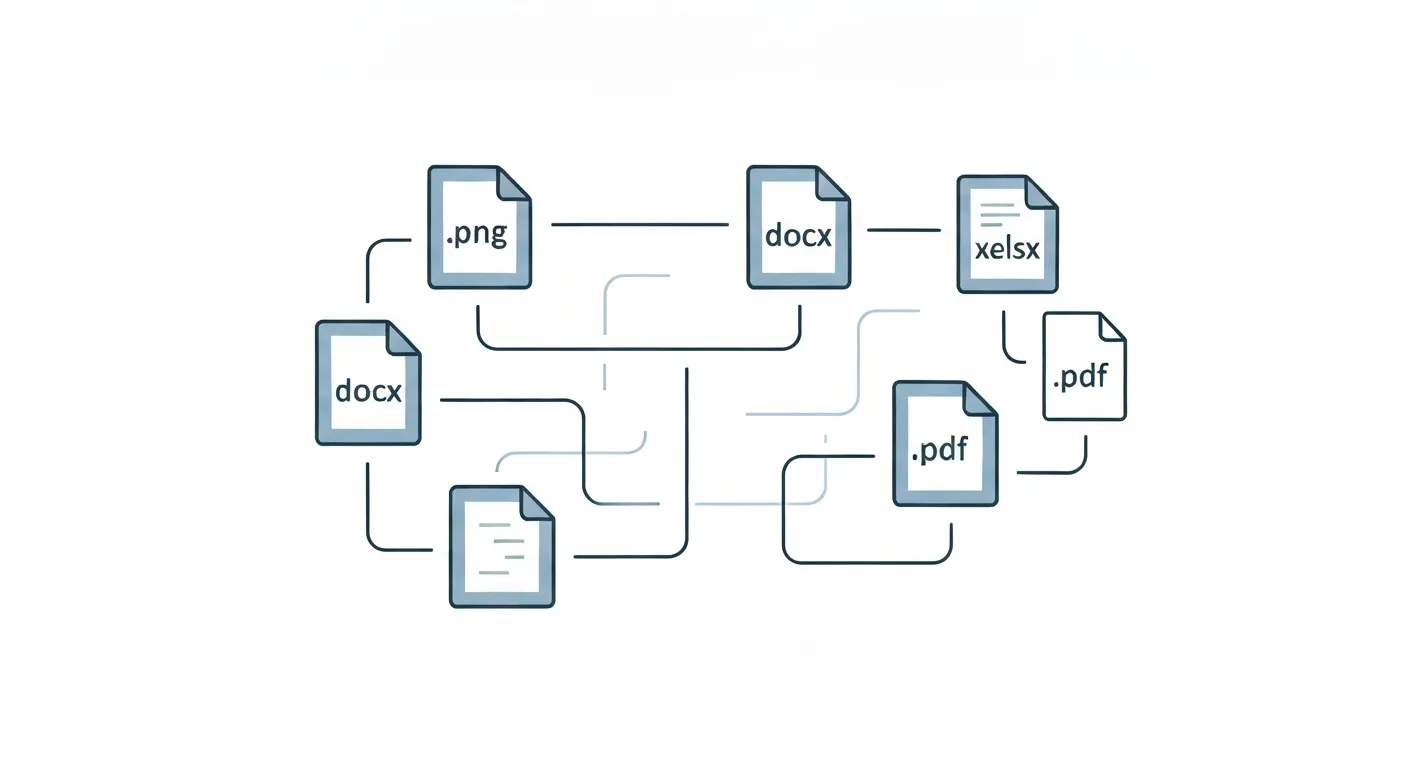
Understanding the mechanics helps you choose the right approach for different document types:
Native Digital PDFs: Documents created from word processors, design software, or “printed to PDF” already contain text data embedded in the file. Extracting this text is straightforward because it’s already there—you’re just accessing it. macOS Preview, Automator, and command-line tools can pull this text instantly with perfect accuracy.
Scanned PDFs and Images: Paper documents scanned to PDF (or PDF files that are essentially images) don’t contain selectable text. They’re pictures of text, which requires Optical Character Recognition (OCR) to convert pixel patterns into actual text characters. Modern OCR uses machine learning to recognize characters with high accuracy, even handling varied fonts, handwriting, and document quality.
Hybrid PDFs: Some documents combine both native text and scanned images across different pages. Smart extraction tools detect which pages need OCR and which can use direct text extraction, optimizing both speed and accuracy.
Local AI Advantages: Traditional rule-based OCR works well but can struggle with unusual fonts, layouts, or languages. AI-powered OCR models trained on diverse datasets handle edge cases better—handwritten notes, old typewriter fonts, multi-column layouts, and documents with mixed languages. Running these models locally on Apple Silicon Macs takes advantage of the Neural Engine for fast, private processing.
The workflow: identify document type → choose extraction method → process locally → get searchable text, all without uploading files.
Step-by-Step: Making PDFs Searchable
For users who want to run AI locally on Mac, here’s how to extract text from PDFs using built-in and third-party tools:
Method 1: Built-in macOS Tools (For Native PDFs)
The simplest approach uses tools already on your Mac:
-
Preview Quick Export: Open the PDF in Preview, select all text (Cmd+A), copy (Cmd+C), paste into a text editor. This works perfectly for native PDFs but fails on scanned documents.
-
Automator Text Extraction: Create an Automator Quick Action that extracts PDF text automatically. Open Automator, create a new Quick Action, add “Extract PDF Text” action, save. Now right-click any PDF in Finder and select your action to get a text file instantly.
-
Terminal Command Line: For batch processing, use
pdftotextvia Homebrew:brew install poppler, thenpdftotext input.pdf output.txt. Add flags for layout preservation:pdftotext -layout input.pdf output.txt.
Method 2: OCR for Scanned Documents
When your PDF is actually an image, you need OCR:
-
Preview’s Hidden OCR: Open the scanned PDF in Preview, select Tools → Text Selection, then try to select text. macOS sometimes applies light OCR automatically. If text becomes selectable, copy and paste as above.
-
Built-in OCR via Screenshot Tool: This clever workaround uses macOS’s screenshot OCR: open the PDF, take a screenshot of the visible area (Cmd+Shift+4), then use the Quick Action “Capture Text” on the screenshot. Repeat for each page (tedious for multi-page documents).
-
Third-Party OCR Apps: Apps like PDFpen, Adobe Acrobat Pro, or open-source tools like OCRmyPDF provide robust local OCR. OCRmyPDF is free and works via command line:
ocrmypdf input.pdf output.pdfcreates a searchable PDF with OCR layer added.
Method 3: AI-Enhanced Processing with MinuteAI (Pro Feature)
MinuteAI Pro subscribers can attach PDF documents for analysis and OCR processing. For audio-based PDF content (like transcribing recorded readings or extracting text from video presentations), MinuteAI offers a unique approach:
- Pro Feature: Attach PDF documents directly for OCR and analysis
- Record or import audio where someone reads the PDF content
- Use WhisperKit or FluidAudio for local transcription (Free tier: recordings up to 10 minutes; Pro: unlimited)
- Get searchable text without OCR, useful for complex layouts or languages that traditional OCR struggles with
- Export as plain text, formatted notes, or structured summaries
Note: Document attach/OCR and unlimited batch processing of PDFs require Pro subscription ($7.99/month, $69.99/year, or $99.99 one-time, 7-day free trial). Free tier includes on-device transcription for recordings up to 10 minutes each.
This works especially well for lecture recordings, conference presentations, or audio books where you want searchable text aligned with the original audio timestamps.
Handling Scanned Documents
OCR quality depends on several factors you can optimize:
Scan Resolution Matters: For best OCR results, scan documents at 300 DPI or higher. Lower resolution makes character recognition harder and increases errors. If you’re scanning documents yourself, choose grayscale or black-and-white rather than color to reduce file size without hurting OCR accuracy.
Preprocessing Improves Results: Before OCR, improve image quality using Preview or image editing tools. Increase contrast to make text darker and backgrounds lighter. Straighten skewed pages (documents scanned at an angle confuse OCR). Remove noise or specks that might be misinterpreted as characters. Crop margins that don’t contain text.
Multi-Language Documents: If your PDF contains multiple languages, ensure your OCR tool supports them all. Modern OCR engines can detect languages automatically, but specifying them explicitly improves accuracy. Some tools like Tesseract OCR let you specify language combinations: tesseract input.png output -l eng+fra for English and French mixed documents.
Handling Handwriting: Handwritten documents are significantly harder than printed text. For best results, use OCR engines specifically trained on handwriting (like Apple’s Live Text feature, which handles handwriting well). Alternatively, extract text from screenshots using macOS’s built-in handwriting recognition, then compile results into a searchable document.
Tables and Complex Layouts: PDFs with tables, multiple columns, or unusual layouts can produce garbled text if OCR processes them linearly. Look for OCR tools with layout analysis that preserves document structure. Adobe Acrobat Pro excels here, maintaining tables and columns. For simpler needs, manually define extraction regions to process sections independently.
Quality Check: Always review OCR output for errors. Scan quality, font complexity, and document condition affect accuracy. Common errors include l/I confusion (lowercase L and uppercase i), 0/O confusion (zero and letter O), and misread punctuation. For critical documents, proofread the extracted text against the original.
Batch Processing Multiple PDFs
When you need to extract text from dozens or hundreds of PDFs, automation becomes essential:
Shell Scripts for Bulk Conversion: Create a simple bash script to process an entire folder:
#!/bin/bash
for pdf in *.pdf; do
    pdftotext -layout "$pdf" "${pdf%.pdf}.txt"
done
Save this as convert_all.sh, run chmod +x convert_all.sh, then execute ./convert_all.sh in a folder of PDFs. Every PDF gets converted to a matching .txt file.
Automator Folder Actions: Set up an Automator workflow that watches a folder and automatically extracts text from any PDF you drop into it. Create a Folder Action, choose your watch folder, add “Extract PDF Text” action, specify output location. Now dragging PDFs into that folder triggers automatic text extraction.
Batch OCR with OCRmyPDF: For folders of scanned PDFs, process all at once:
for pdf in input_folder/*.pdf; do
    ocrmypdf "$pdf" "output_folder/$(basename "$pdf")"
done
This applies OCR to every PDF and saves searchable versions to your output folder. Add the --force-ocr flag to OCR even PDFs that already have some text.
Parallel Processing for Speed: Modern Macs handle multiple OCR operations simultaneously. Use GNU Parallel to process multiple PDFs at once: ls *.pdf | parallel ocrmypdf {} output/{}.pdf. This can reduce total processing time by 75% on multi-core systems.
Quality Assurance: For batch operations, create a verification step. After processing, check that each output file exists and contains reasonable text content. A simple script can flag files where OCR produced suspiciously short results, indicating potential problems.
From PDFs to Actionable Knowledge
Text extraction is just the first step—the real value comes from what you do with searchable content:
Full-Text Search Across Documents: Once PDFs are converted to text, use Spotlight, grep, or dedicated search tools to find information across your entire document library instantly. Search for client names, project references, legal citations, or technical terms across hundreds of documents in seconds.
Feed Text to AI Models: Extract text from PDFs, then use local AI models to summarize, analyze, or answer questions about the content. MinuteAI’s AI enhancement features work on transcribed text, letting you generate summaries, extract key points, or create structured notes from PDF content—all processed locally.
Archive and Preserve: Plain text files are future-proof. PDFs can become unreadable as software evolves, but .txt files will work forever. Convert important PDFs to text for long-term archival, ensuring you can access content regardless of future PDF software availability.
Accessibility: Text extraction makes documents accessible to screen readers and assistive technologies. Converting scanned documents to searchable text helps users with visual impairments access information that would otherwise be locked in image-based PDFs.
Ready to process your sensitive documents without cloud services? Explore MinuteAI’s features for local AI processing that keeps your confidential information under your control. Whether you’re transcribing audio, extracting text from PDFs, or analyzing content with AI, everything stays on your device—private, secure, and always available offline.
Try MinuteAI Free on Mac
Privacy-first AI transcription running entirely on your device. No uploads, no subscriptions required to start.
Download for MacRelated Articles
MacWhisper vs MinuteAI: Which Local Transcription App Is Better?
Detailed comparison of MacWhisper and MinuteAI for local AI transcription on Mac. Features, pricing, engines, OCR, and privacy compared side-by-side.
WorkflowsAnalyze YouTube Videos Locally: Transcribe & Summarize Without Cloud APIs
Download and analyze YouTube videos on your Mac using local AI. Get transcripts, summaries, and key points without sending data to cloud services.
WorkflowsExtract Subtitles from Video Offline: SRT Generation on Mac
Generate SRT subtitle files from any video offline using local AI on your Mac. No cloud services needed — extract accurate subtitles with timestamps.